Sales
Everything between a store wanting stock and you being paid for it. Orders, invoices, customers, the counter and who owes you.
Take order
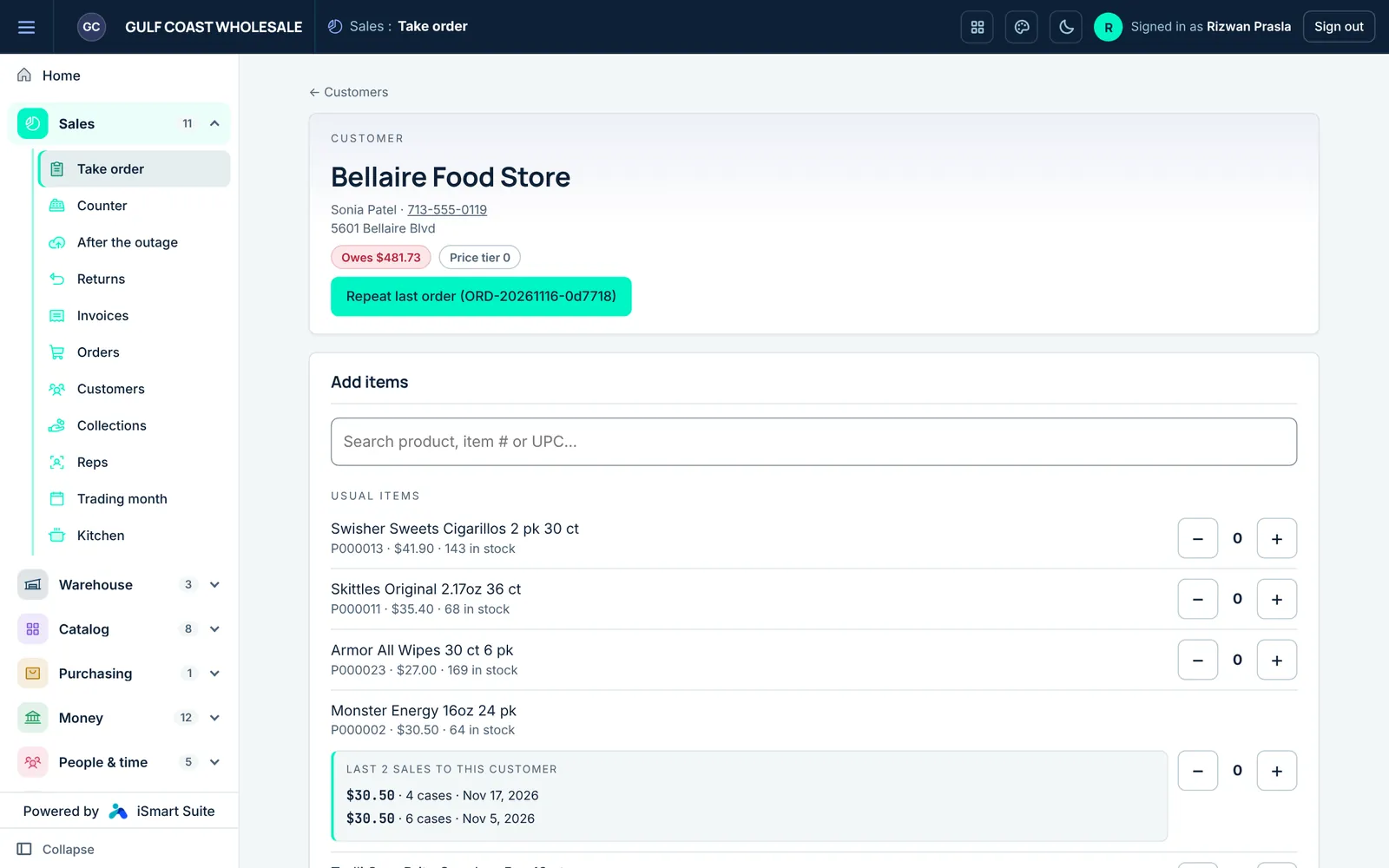
Sales → Take order The page is headed “Take an order”.
Order taking for someone visiting or phoning a store. Search by store name, contact or phone.
What you do here
- See at a glance what each store owes and when it last ordered.
- Open a store and press Repeat last order.
- Add items by search, or use the store’s usual items, each shown with the last prices you sold it at.
Usually used by Owner / AdminSales managerSales repCustomer support
Store requests
Sales → Store requests
Everything stores ask for from the online store that is not an order: pre-orders, shelf labels, product suggestions and help requests.
What you do here
- Switch between the Pre-orders, Shelf labels, Suggestions and Help tabs.
- Press Mark done when a request is handled, or Decline with a reason.
- The store sees the answer under Requests in the online store.
Usually used by Owner / AdminSales managerCustomer support
Counter
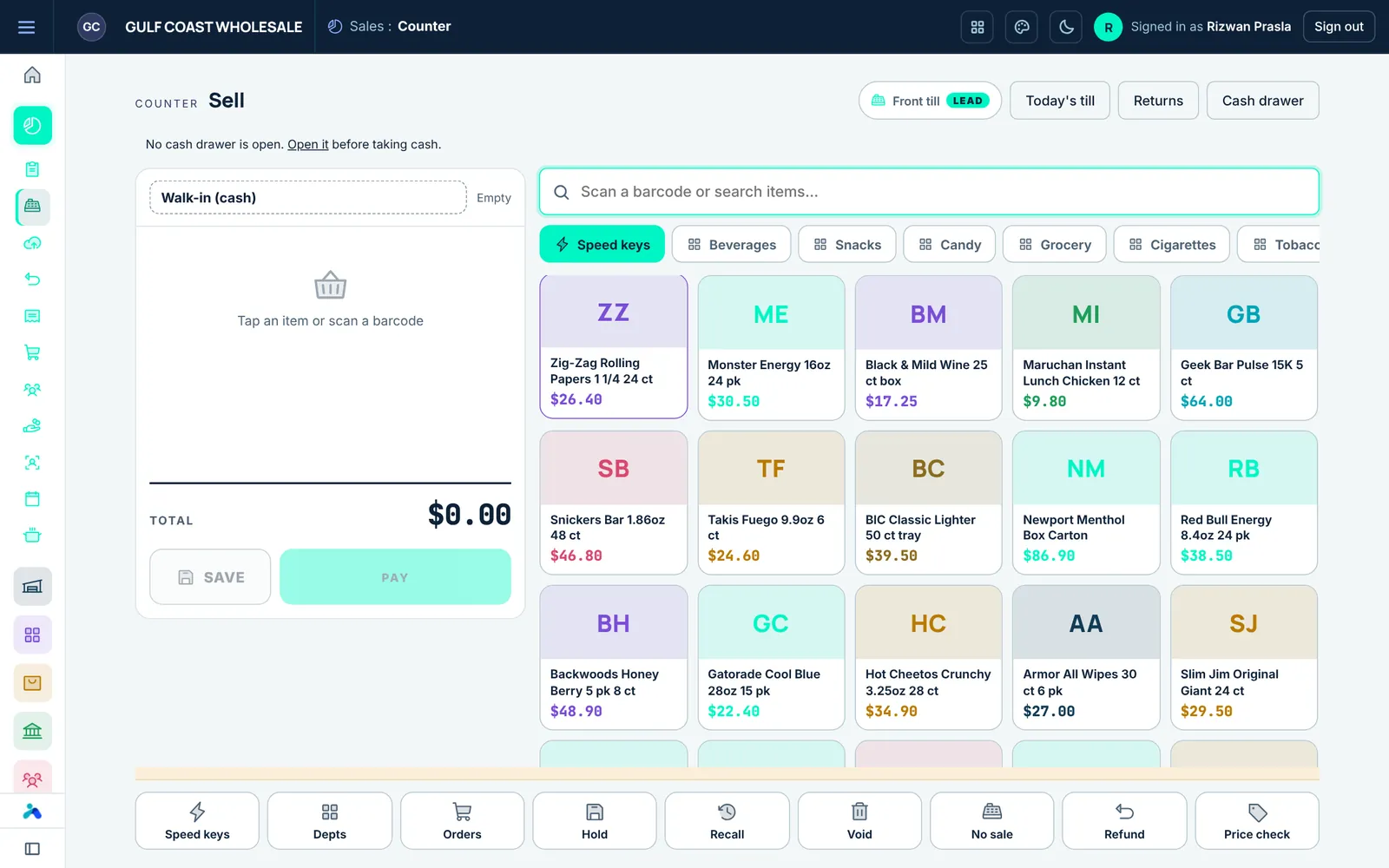
Sales → Counter The page is headed “Sell”.
The register for walk-in and cash-and-carry customers.
What you do here
- Name the register once per machine; every sale and drawer is recorded against that name.
- Scan a barcode, search, or tap a speed key. Departments are tabs across the top.
- Hold a sale and recall it, void a line, open the drawer with No sale, or check a price without selling.
- Tobacco and vape items ask for the buyer’s permit number before the sale goes through.
Usually used by Owner / AdminSales managerCounter / cashier
Register tickets
Sales → Register tickets
Deli and food orders taken at the counter, each with a ticket number, until the customer collects. Only shown when the deli is switched on.
What you do here
- Search by ticket number or customer.
- Press Mark collected when the customer picks the order up and pays.
- Press Reprint if a ticket is lost or the kitchen needs another copy.
Usually used by Owner / AdminSales managerCounter / cashier
Kitchen
Sales → Kitchen
What the kitchen screen is showing: every open food ticket, oldest first.
What you do here
- See each ticket and how long it has been waiting.
- Cancel a ticket the customer no longer wants.
- Open Screens to set up the kitchen screen and the customer screens that show order numbers.
Usually used by Owner / AdminSales manager
After the outage
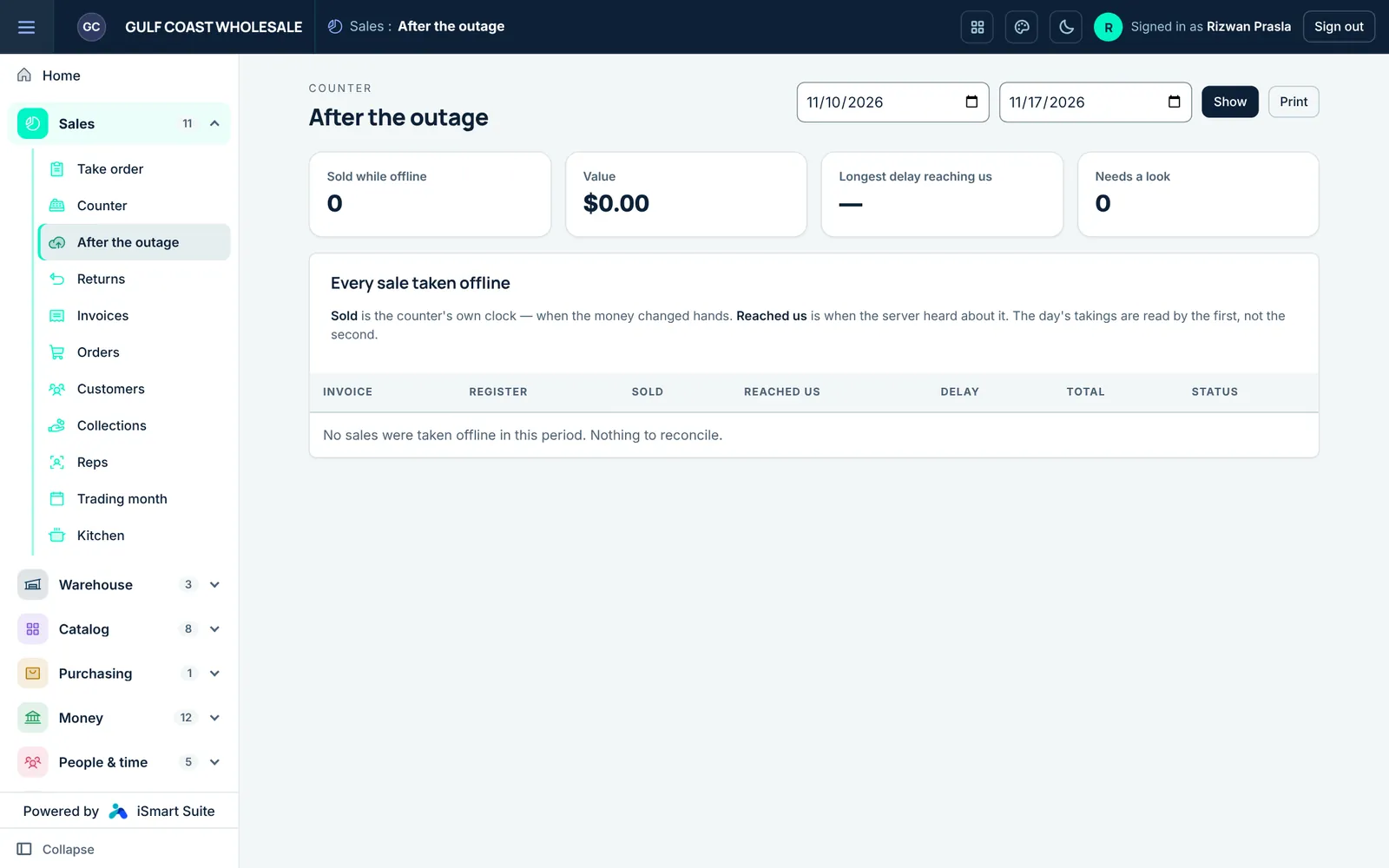
Sales → After the outage
Sales a register took while the internet was down, and when each one reached the server.
What you do here
- See how many sales were taken offline, their value, and the longest delay.
- Check anything marked “Needs a look”.
- Print the list for the day’s paperwork.
Usually used by Owner / AdminSales manager
Returns
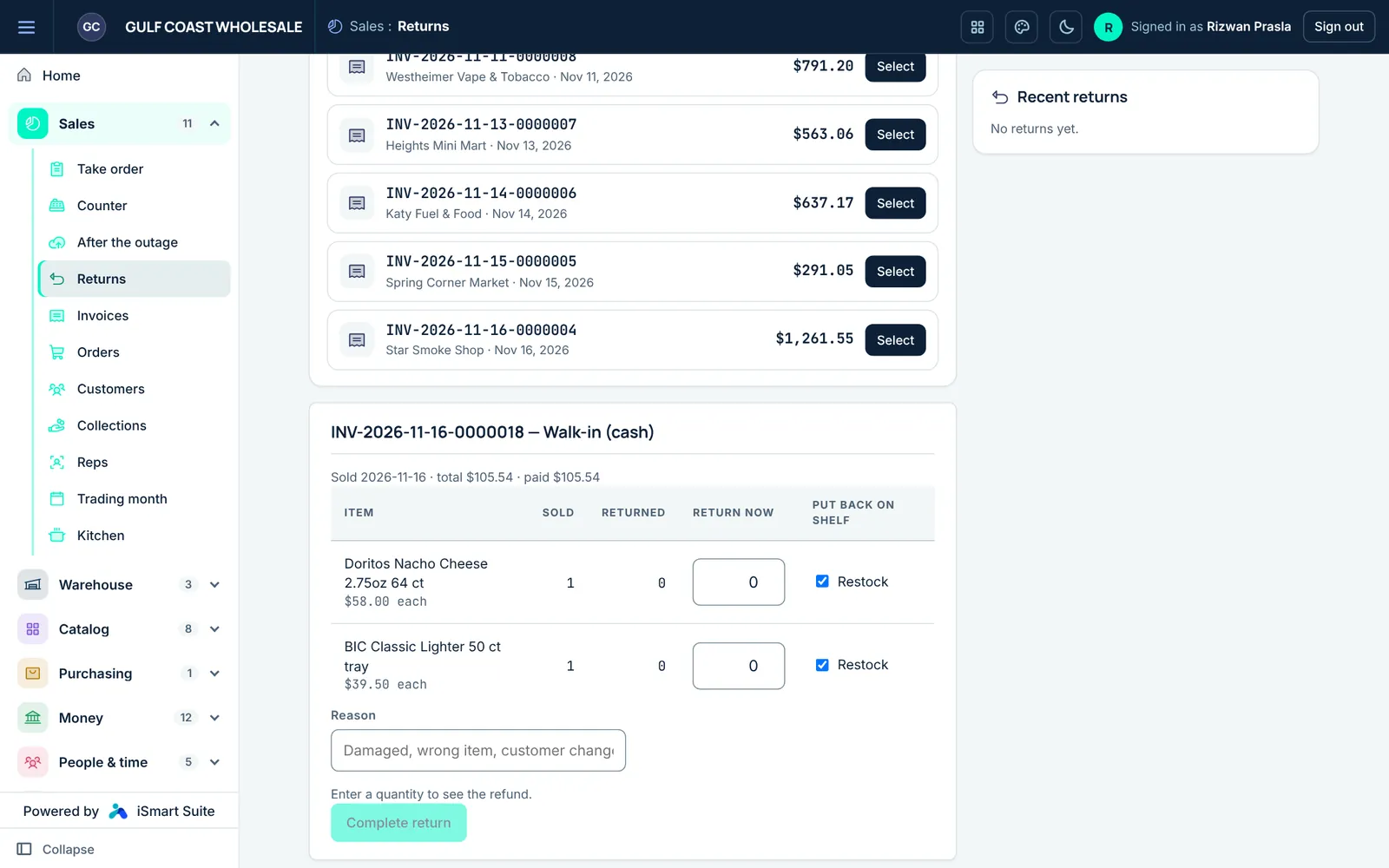
Sales → Returns The page is headed “Returns & refunds”.
Take goods back against the original sale.
What you do here
- Find the sale by invoice or receipt number, or by customer name.
- Enter how many of each line are coming back and tick whether they go back on the shelf.
- Refund by cash, card or check, or take the amount off what the customer owes.
Usually used by Owner / AdminSales manager
Invoices
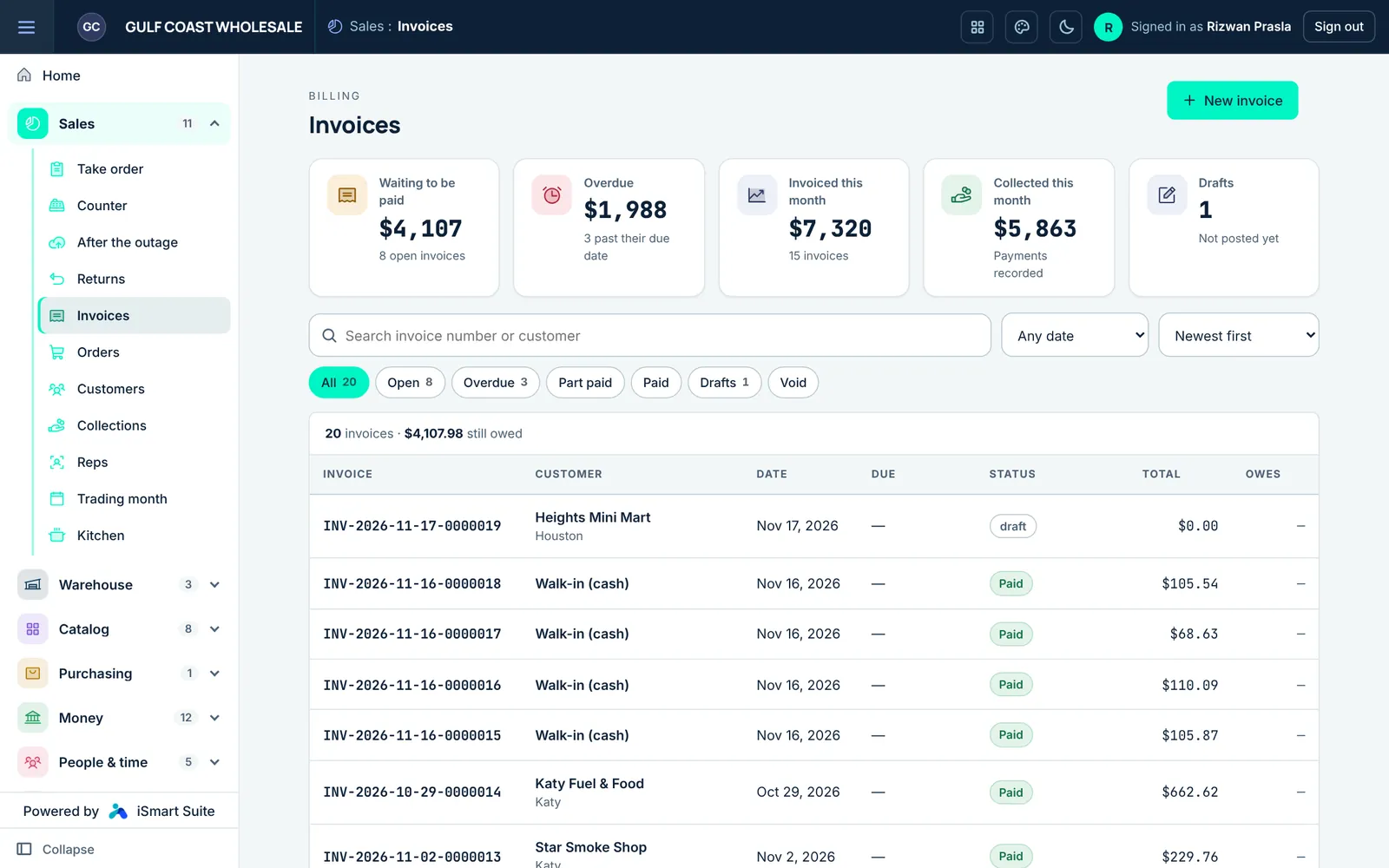
Sales → Invoices
Every invoice, with what is waiting to be paid and what is overdue.
What you do here
- Filter by Open, Overdue, Part paid, Paid, Drafts or Void.
- Start a new invoice; leave the number blank and the next one is used.
- Open an invoice to print it, download the PDF or EDI files, email it, record a payment or void it.
Usually used by Owner / AdminSales managerCustomer supportViewer
Orders
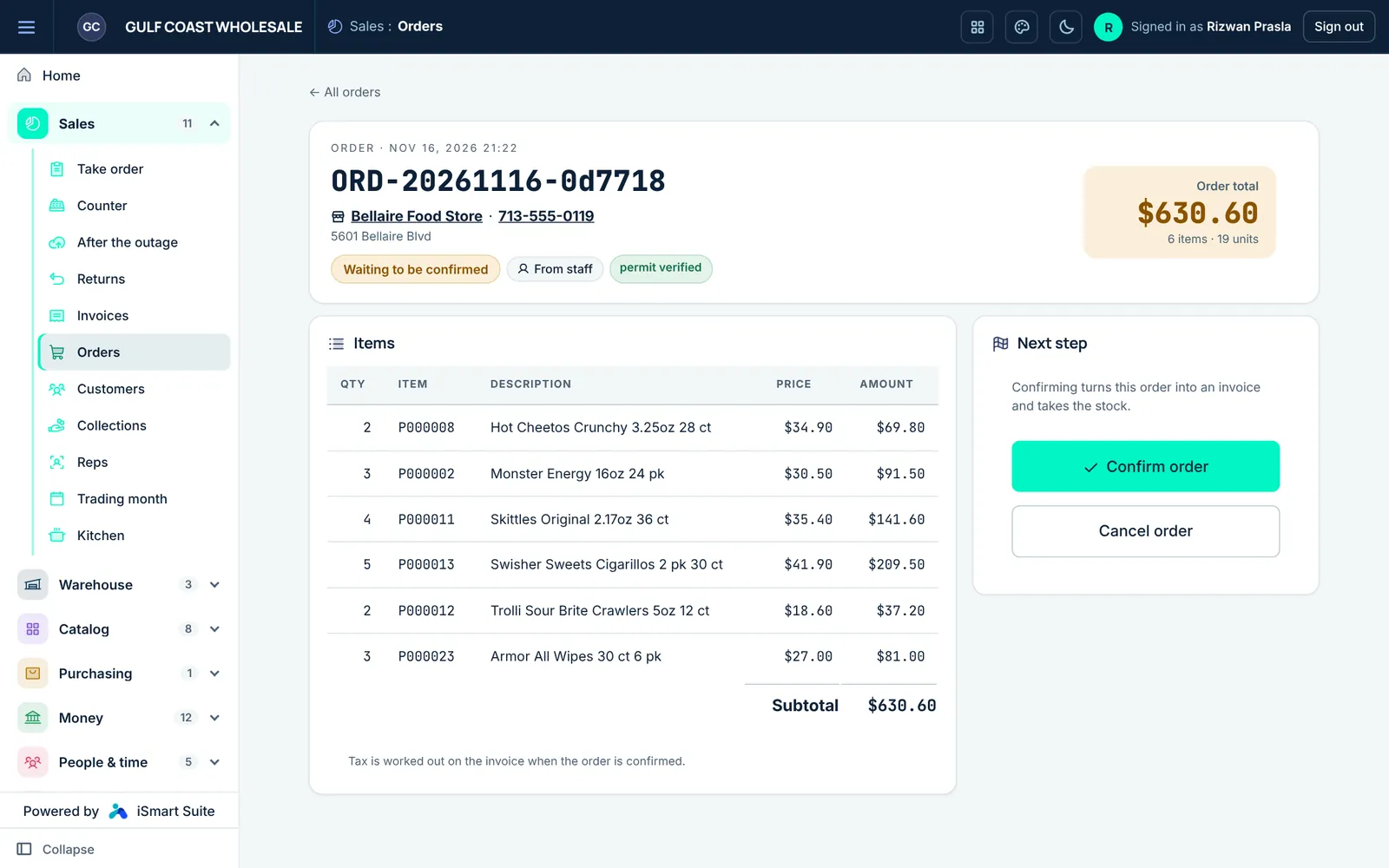
Sales → Orders
Orders from the online store, the counter and your staff, before they become invoices.
What you do here
- See what is waiting to be confirmed and what needs a look first (a new customer, or a permit that is not verified).
- Open an order and press Confirm order. Confirming turns it into an invoice and takes the stock.
- Cancel an order that should not go ahead.
Usually used by Owner / AdminSales managerSales repCustomer supportViewer
Customers
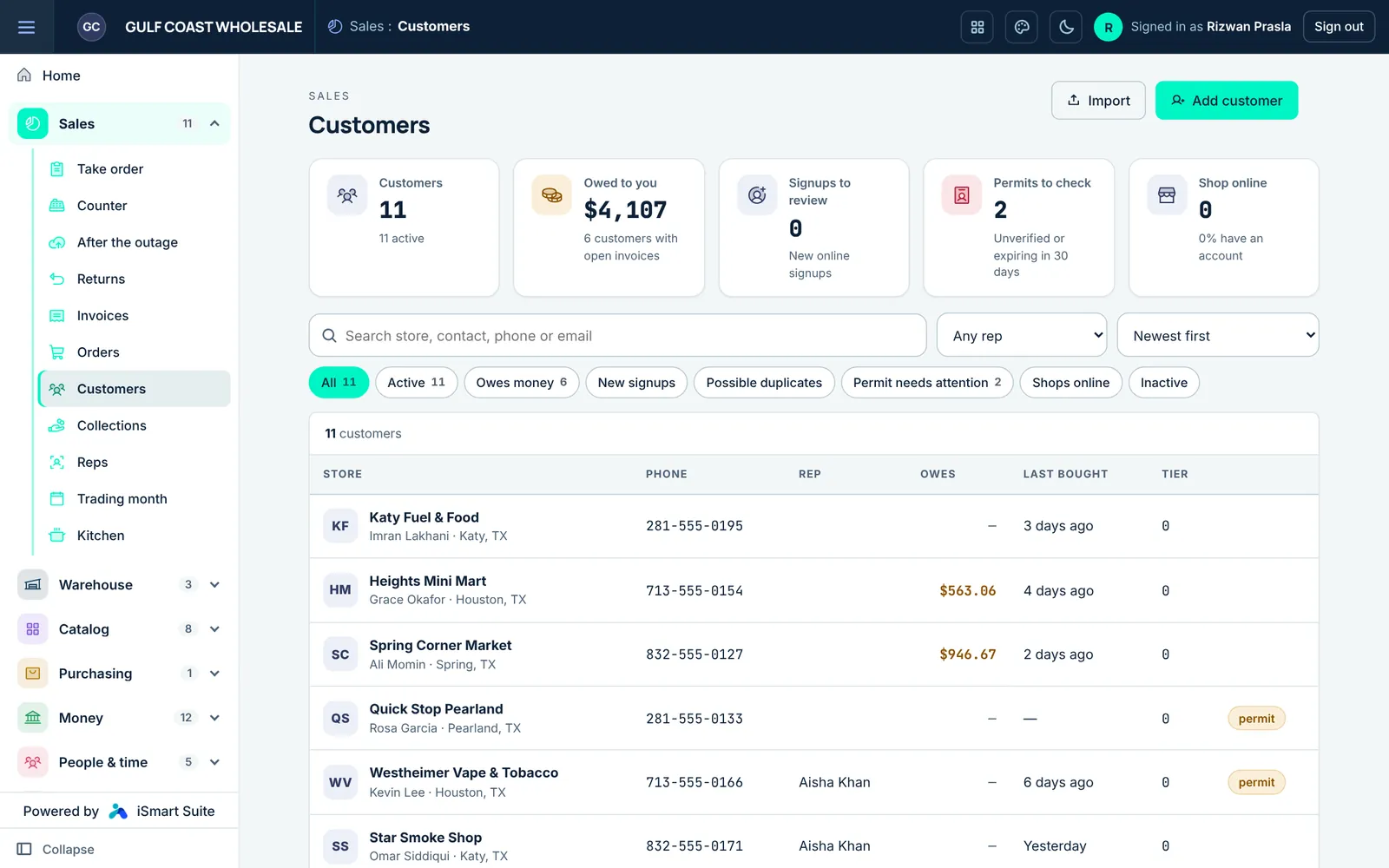
Sales → Customers
Your stores: who they are, what they owe, and whether their paperwork is in order.
What you do here
- Filter by Owes money, New signups, Possible duplicates, Permit needs attention or Shops online.
- Open a store to call, email, map it, see its invoices or start a new one.
- Set its sales rep, price tier, credit limit, payment terms and minimum order.
- Import customers from a spreadsheet.
Usually used by Owner / AdminSales managerSales repCounter / cashierCustomer supportViewer
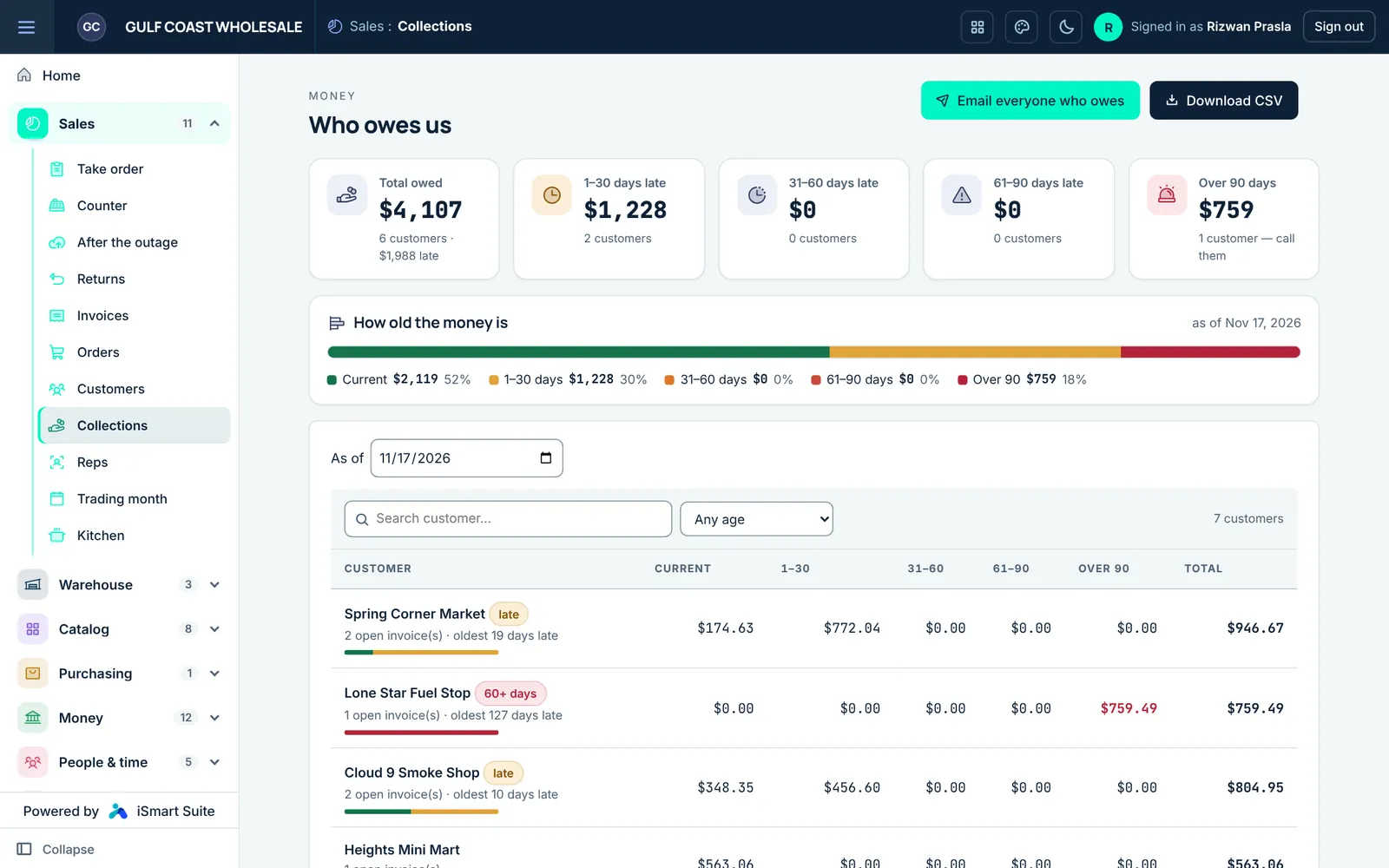
Collections
Sales → Collections The page is headed “Who owes us”.
What you are owed, split by how late it is: current, 1–30, 31–60, 61–90 and over 90 days.
What you do here
- See the total owed and how old the money is on one bar.
- Email everyone who owes in one go.
- Download the list as a spreadsheet.
Usually used by Owner / AdminSales managerCustomer support
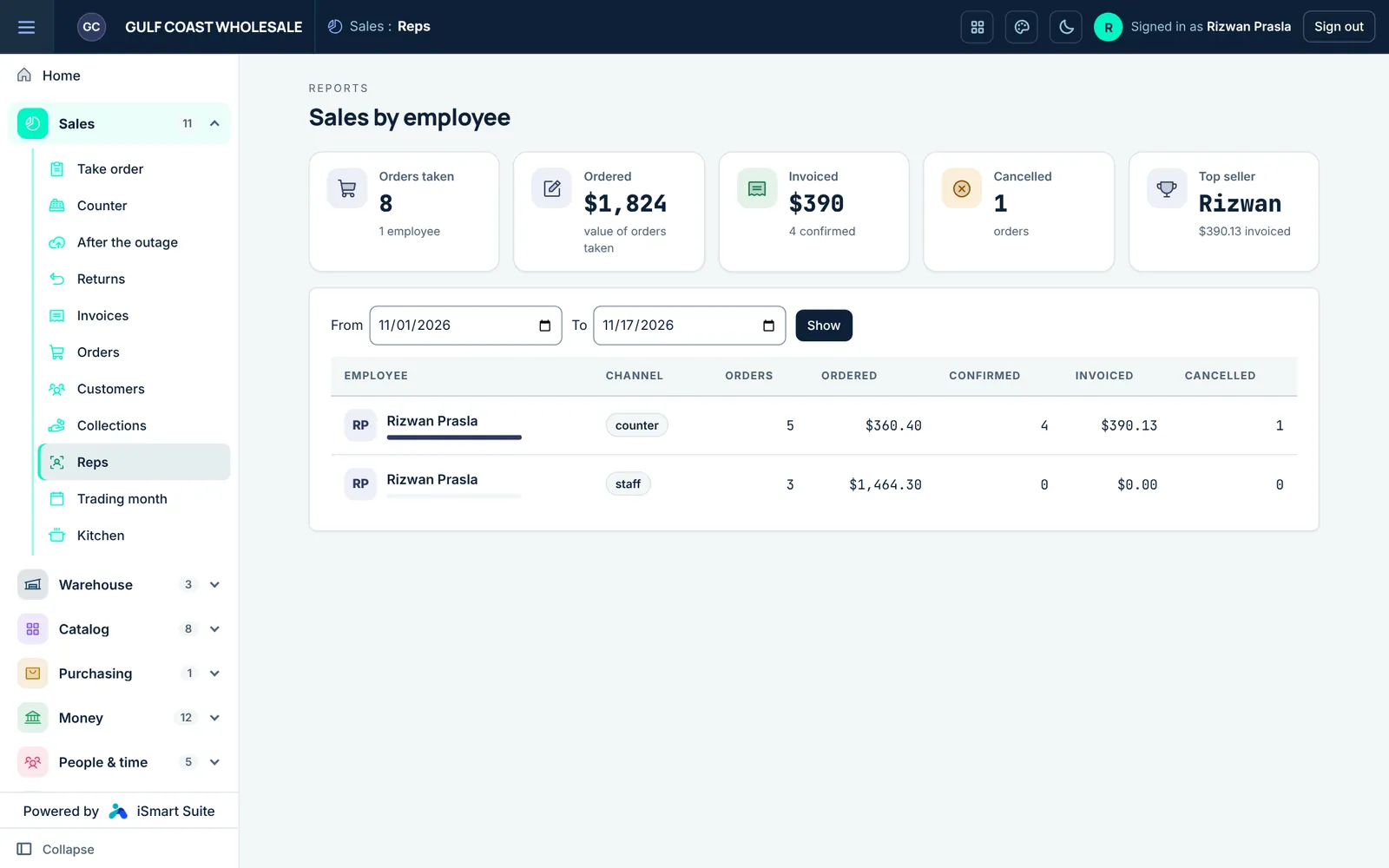
Reps
Sales → Reps The page is headed “Sales by employee”.
Who took which orders, and how much of it was invoiced.
What you do here
- Pick a date range.
- Compare orders taken, value ordered, value invoiced and cancellations for each person.
Usually used by Owner / AdminSales manager
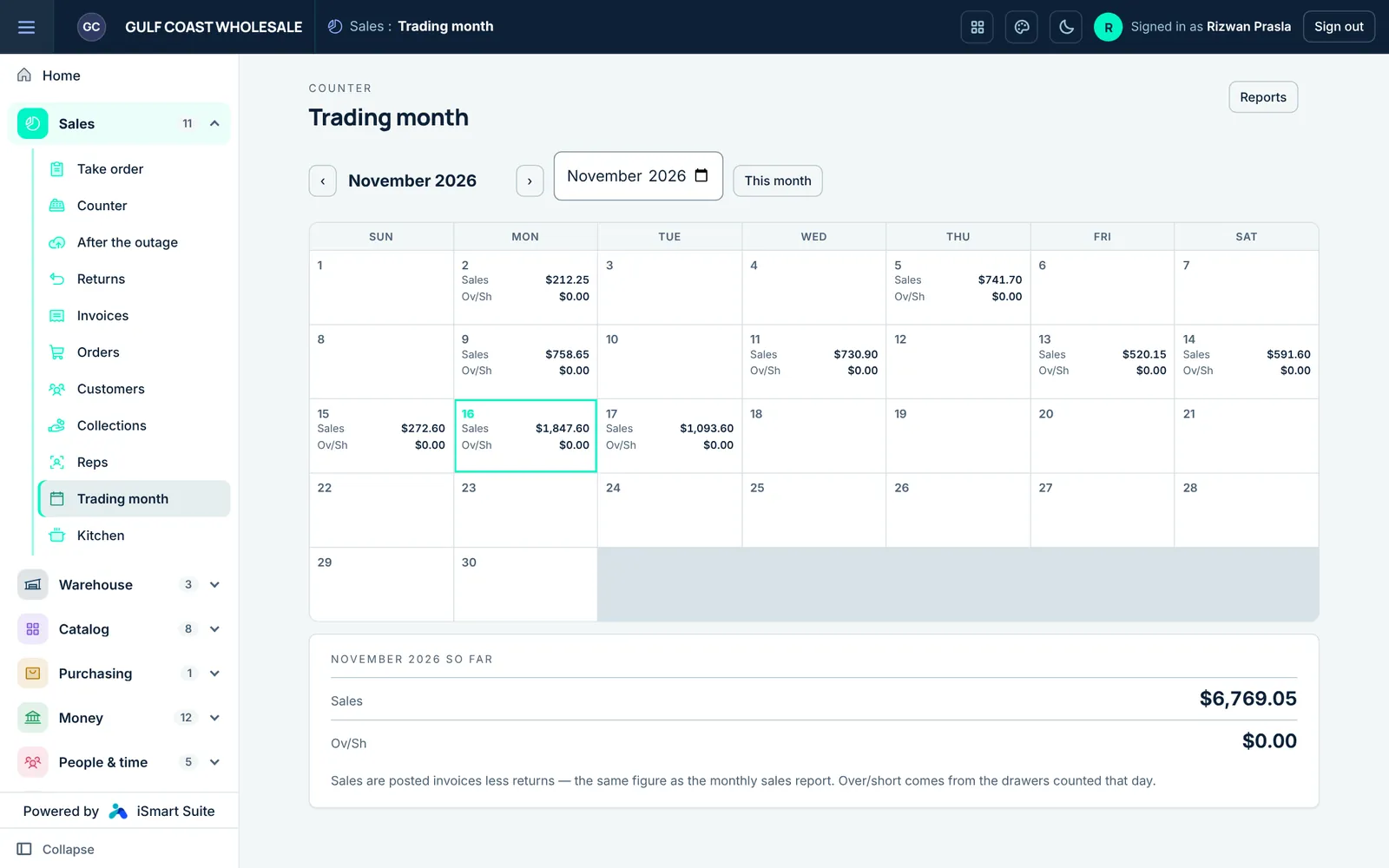
Trading month
Sales → Trading month
A calendar of the month with each day’s sales and its cash over or short.
What you do here
- Step through the months.
- Read the month-so-far totals at the bottom.
- Jump to Reports for the detail behind a day.
Usually used by Owner / AdminSales manager