
Take an order for a customer
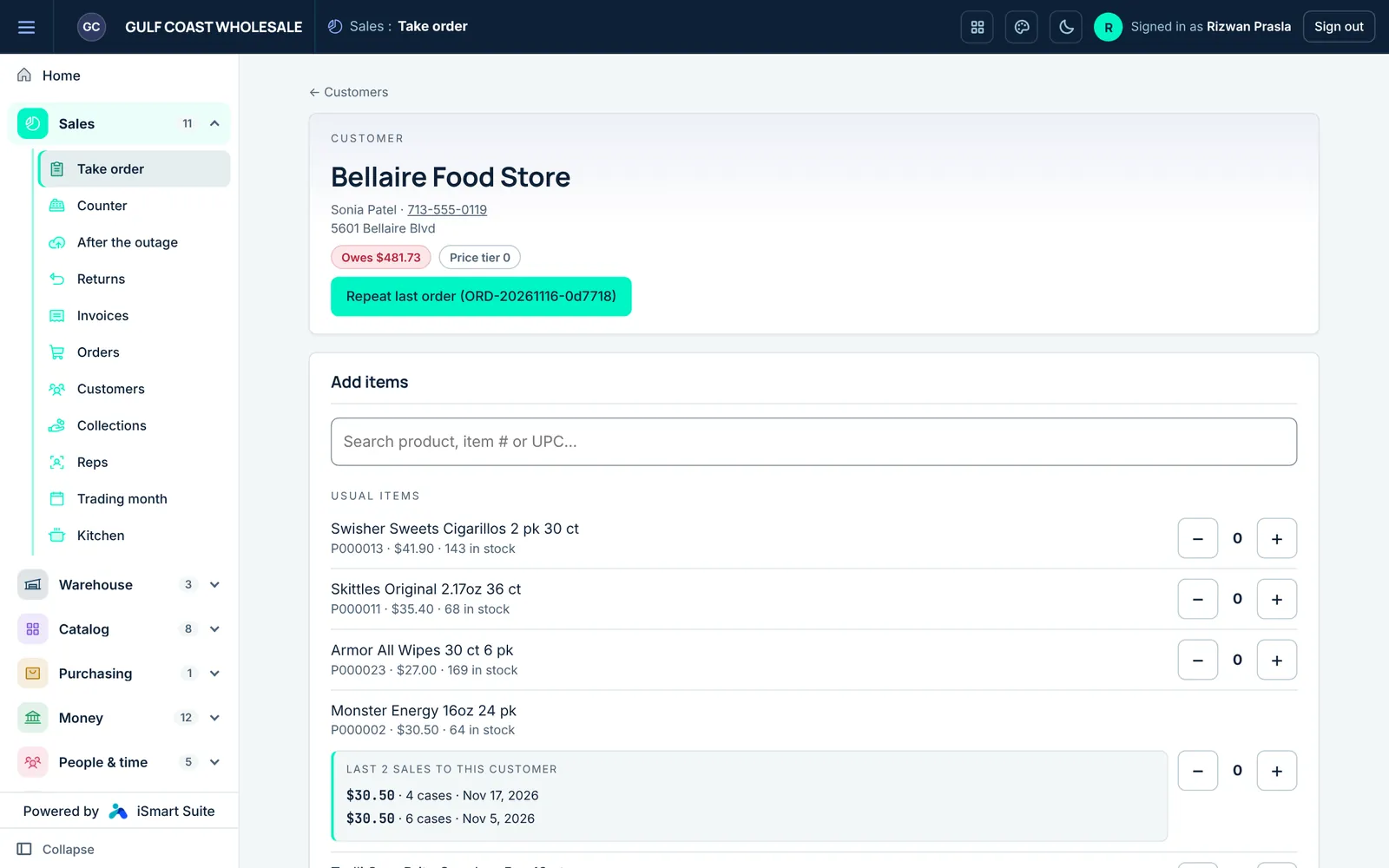
The order screen a rep or office uses when a customer orders by phone or in person.
For: Owner / Admin, Sales manager, Sales rep, Customer support · about 4 minutes
An order is a promise, not a sale. It reserves stock and goes on to be picked, delivered and invoiced. Nothing is charged until the invoice is posted.
Step by step
Where:
Sales → Take orderChoose the customer
Prices change the moment you do: the customer's tier and any negotiated prices apply from here on.
Add products by name, code or barcode
Each line shows what that customer pays, not the list price.
Check the total and place the order
Credit limit and permits are both checked at this point, so a refusal arrives now rather than when the van is loaded.
Watch out for
- If the customer's permit has lapsed, restricted lines stop the order being placed. The fix is a new permit date on the customer record, not removing the line and hoping.
- Out-of-stock lines are refused with a reason rather than silently dropped. A customer who is quietly shorted finds out when the van arrives.
Questions about this
Does placing an order reduce stock?
It reserves it, so the same case cannot be promised twice. Stock moves for real when the goods are shipped and invoiced.
Can a customer place their own orders?
Yes, through the online shop. Those arrive in Orders waiting to be confirmed, and your staff confirm them before anything is picked.