
System
How the workspace itself is set up and who may do what. Settings, users, roles, registers and the audit log.
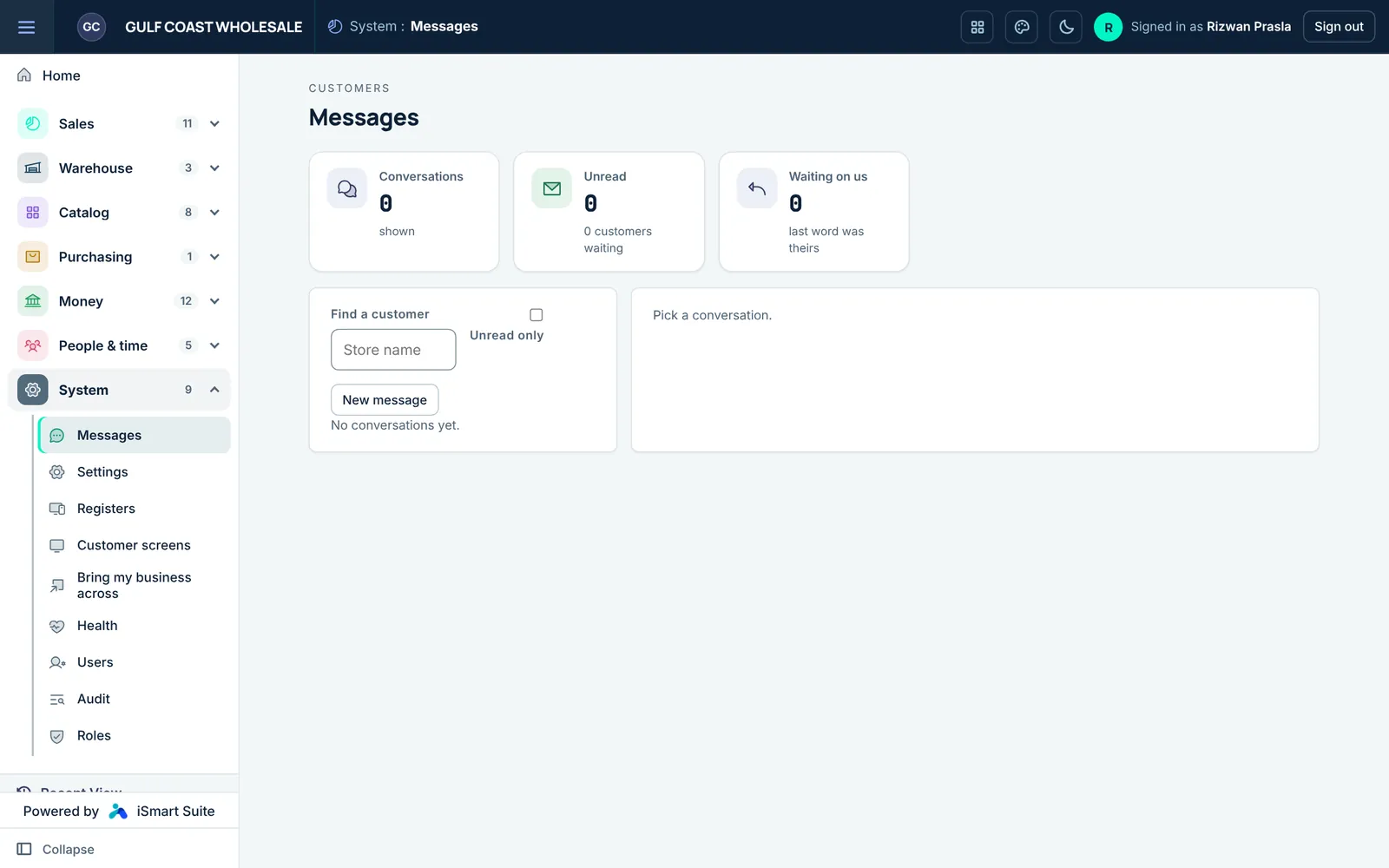
Messages
System → Messages
Conversations with your customers.
What you do here
- See what is unread and what is waiting on you.
- Start a message to a store.
Usually used by Owner / AdminSales managerCustomer support
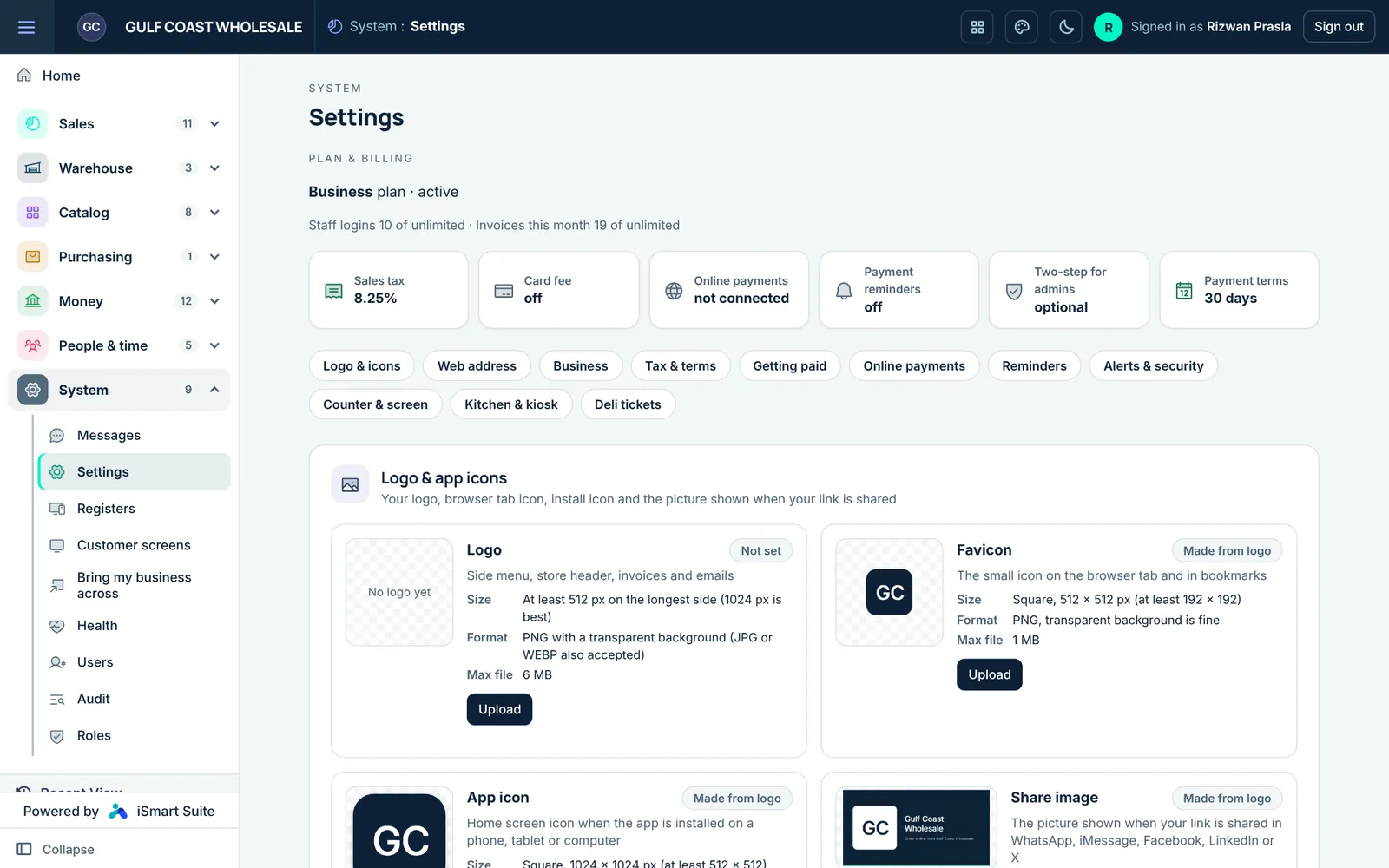
Settings
System → Settings
Your plan, your branding and how the business runs.
What you do here
- See your plan, staff logins used and invoices posted this month.
- Upload your logo, browser icon, app icon and share image.
- Set your web address, business details, sales tax, payment terms and how you get paid.
- Connect online payments and turn on payment reminders.
- Require two-step sign-in for admins.
Usually used by Owner / Admin
Features
System → Features
Switch off the parts of the system your business does not use: the Counter, the Online store, Wholesale & delivery, Books & payroll, Lottery or Fuel.
What you do here
- Switch a part off: it leaves the menu, the Home page and every screen for everybody.
- Read what goes with each part before you switch it.
- Switch it back on: nothing was deleted, so everything comes back.
Usually used by Owner / Admin
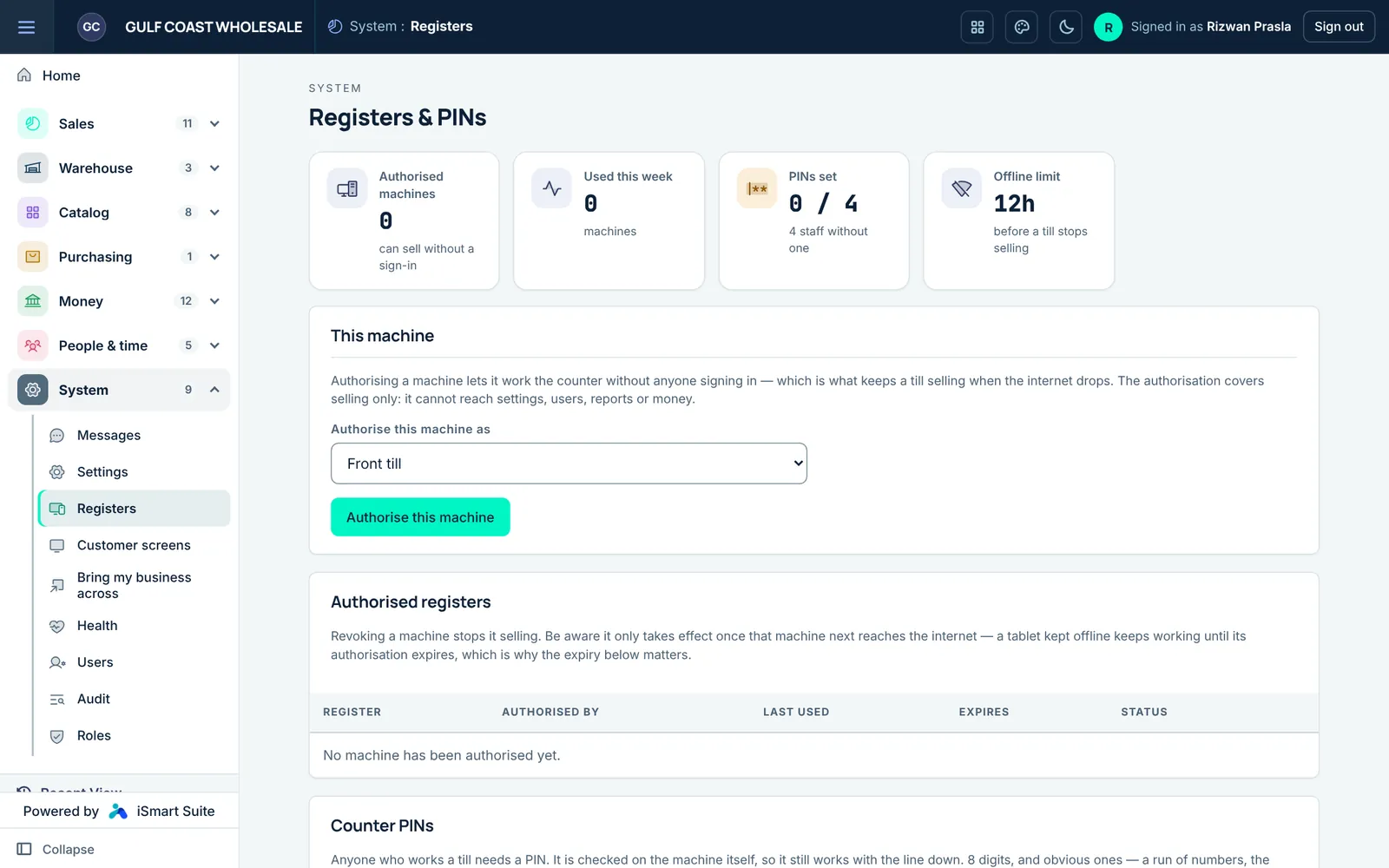
Registers
System → Registers The page is headed “Registers & PINs”.
Which machines may run the counter, and each person’s counter PIN.
What you do here
- Authorise a machine, so the till keeps selling when the internet drops.
- Revoke a machine that is lost or replaced.
- Give each person who works a till a PIN.
Usually used by Owner / Admin
Import templates
System → Import templates
A ready-made spreadsheet for every kind of list you can bring in: products, customers, stock, invoice history, vendor costs and special prices.
What you do here
- Download the template you need; each has example rows showing the format.
- Fill it in and import it from the screen the template names.
- Open Bring my business across to move customers and invoice history from another system.
Usually used by Owner / AdminInventory manager
Step by step: Download a ready-made spreadsheet for any import
Legal & privacy
System → Legal & privacy
Your store’s Terms, Privacy Policy, Cookie Policy and Accessibility statement, the details they quote, and the cookie notice.
What you do here
- Fill in Your details once: legal name, privacy email, address, state.
- Edit a document, save a draft, check it under Preview, then Publish. Every version is kept under History.
- When you publish new Terms, choose whether store customers must accept them before their next order.
Usually used by Owner / Admin
Step by step: Publish your Terms, Privacy, Cookie and Accessibility pages
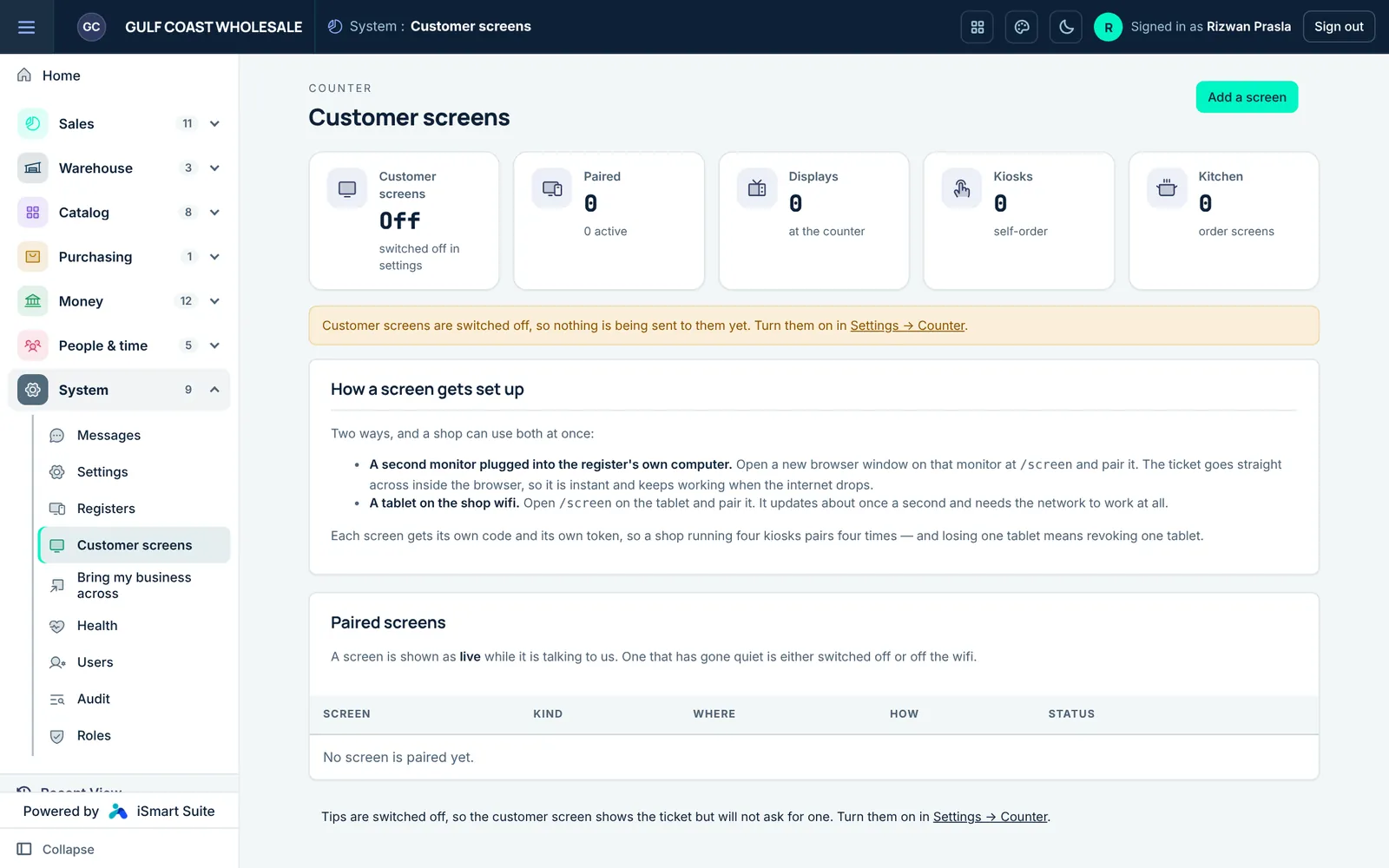
Customer screens
System → Customer screens
A second screen facing the customer at the counter, a self-order kiosk, or a kitchen screen.
What you do here
- Pair a second monitor on the register’s own computer.
- Pair a tablet on the shop wifi.
- See which screens are live.
Usually used by Owner / Admin
Bring my business across
System → Bring my business across
Move in from another system: products first, then customers, then past invoices.
What you do here
- Load a spreadsheet and see what it would do before it does anything.
- Run a file again safely; the same file loaded twice does not create anything twice.
Usually used by Owner / Admin
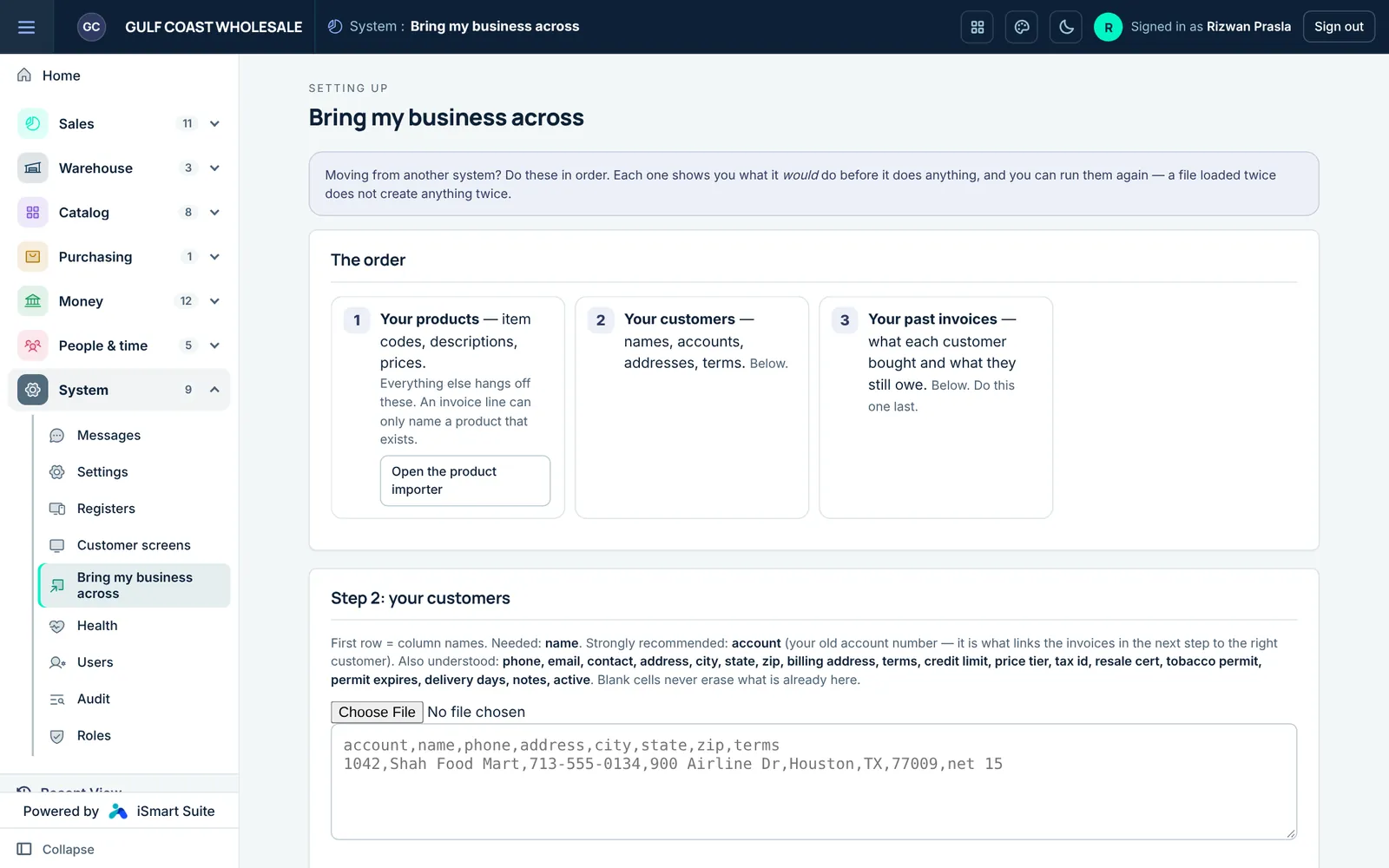
Step by step: Bring your products, customers and history across
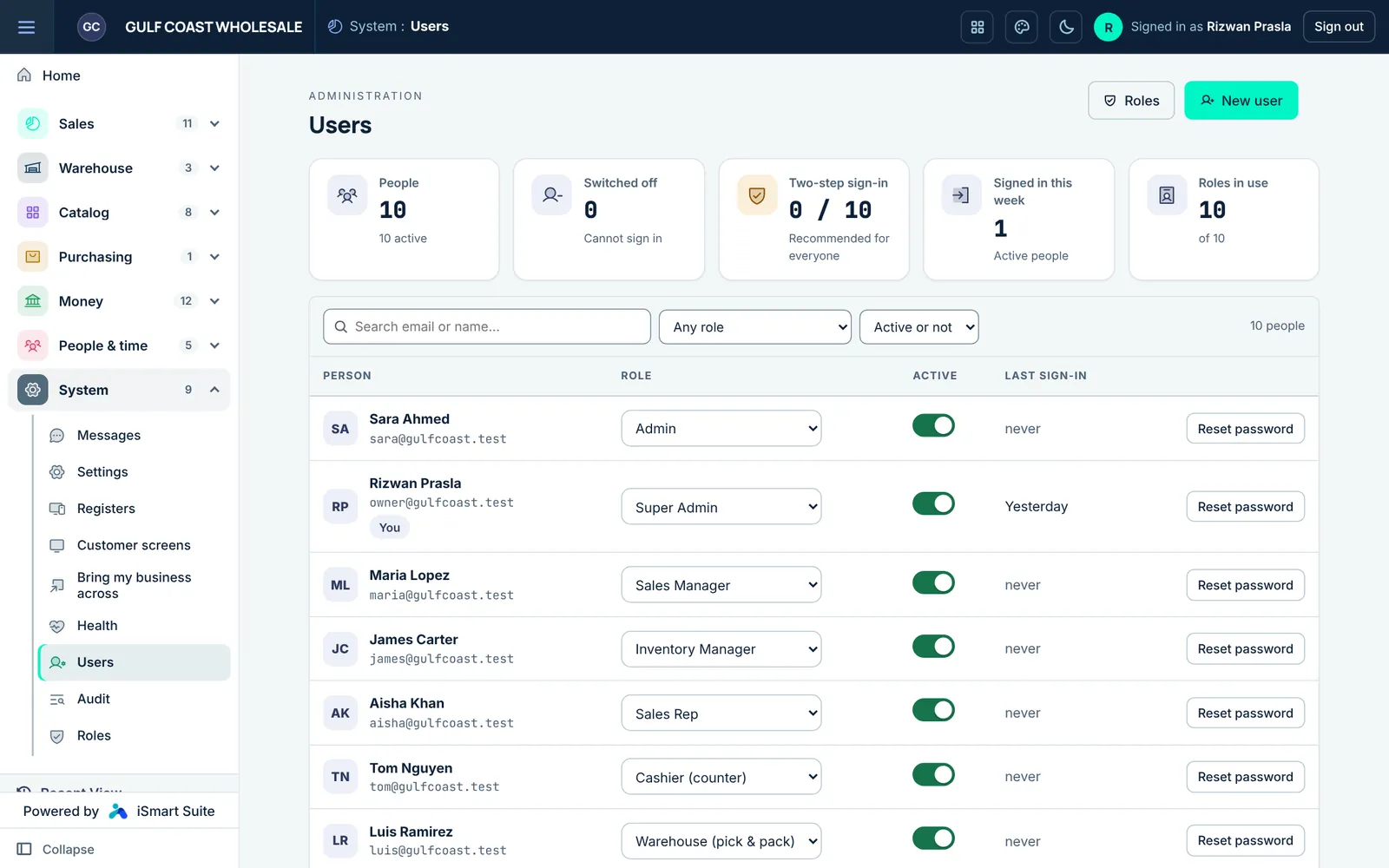
Users
System → Users
Everyone who can sign in to the console.
What you do here
- Add a person with an email, a name, a password and a role.
- Change someone’s role, switch them off, or reset their password.
- See who has two-step sign-in turned on.
Usually used by Owner / Admin
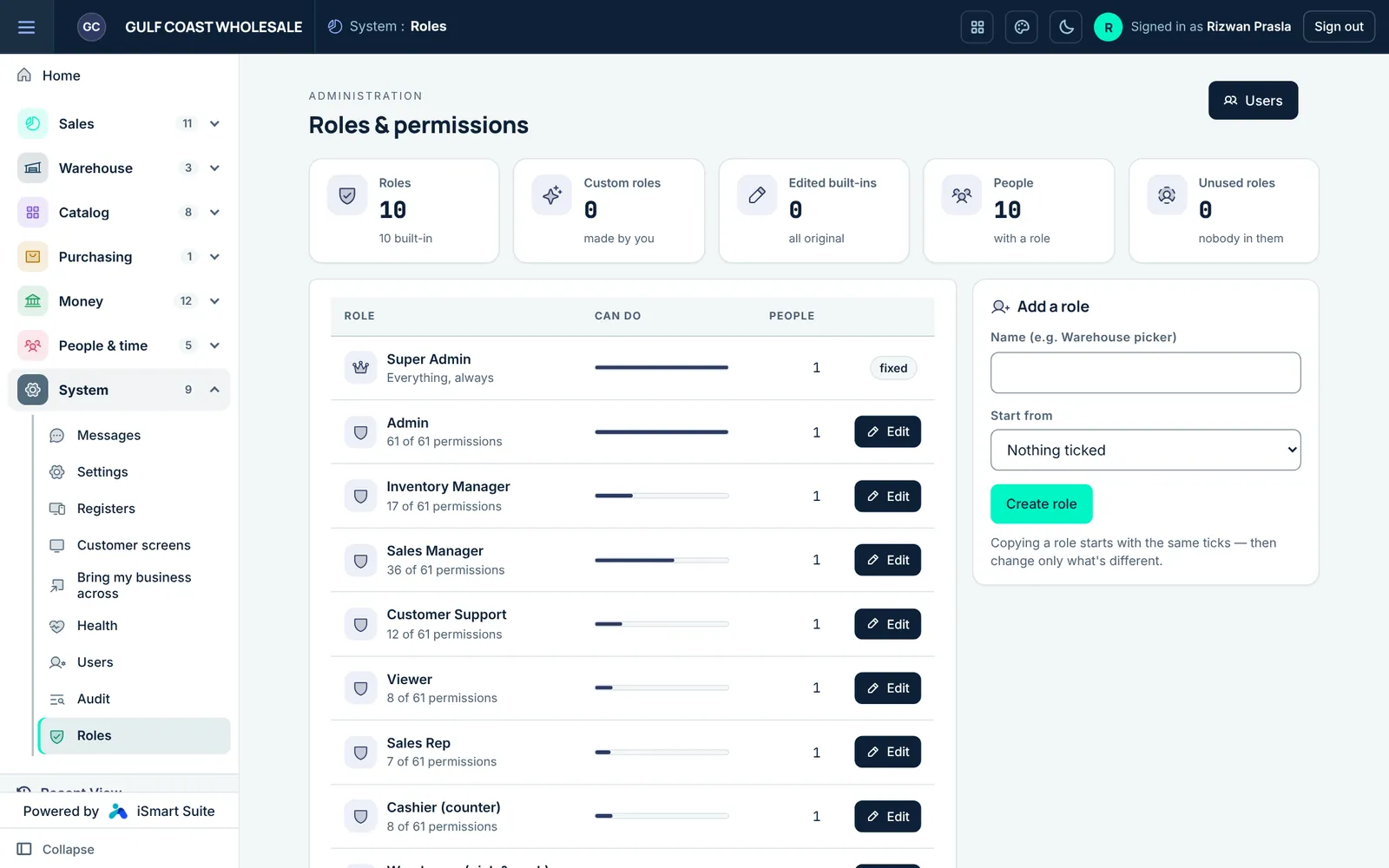
Roles
System → Roles The page is headed “Roles & permissions”.
What each role may do, as tick boxes.
What you do here
- Edit a built-in role.
- Add a role of your own by copying one and changing what is different.
Usually used by Owner / Admin
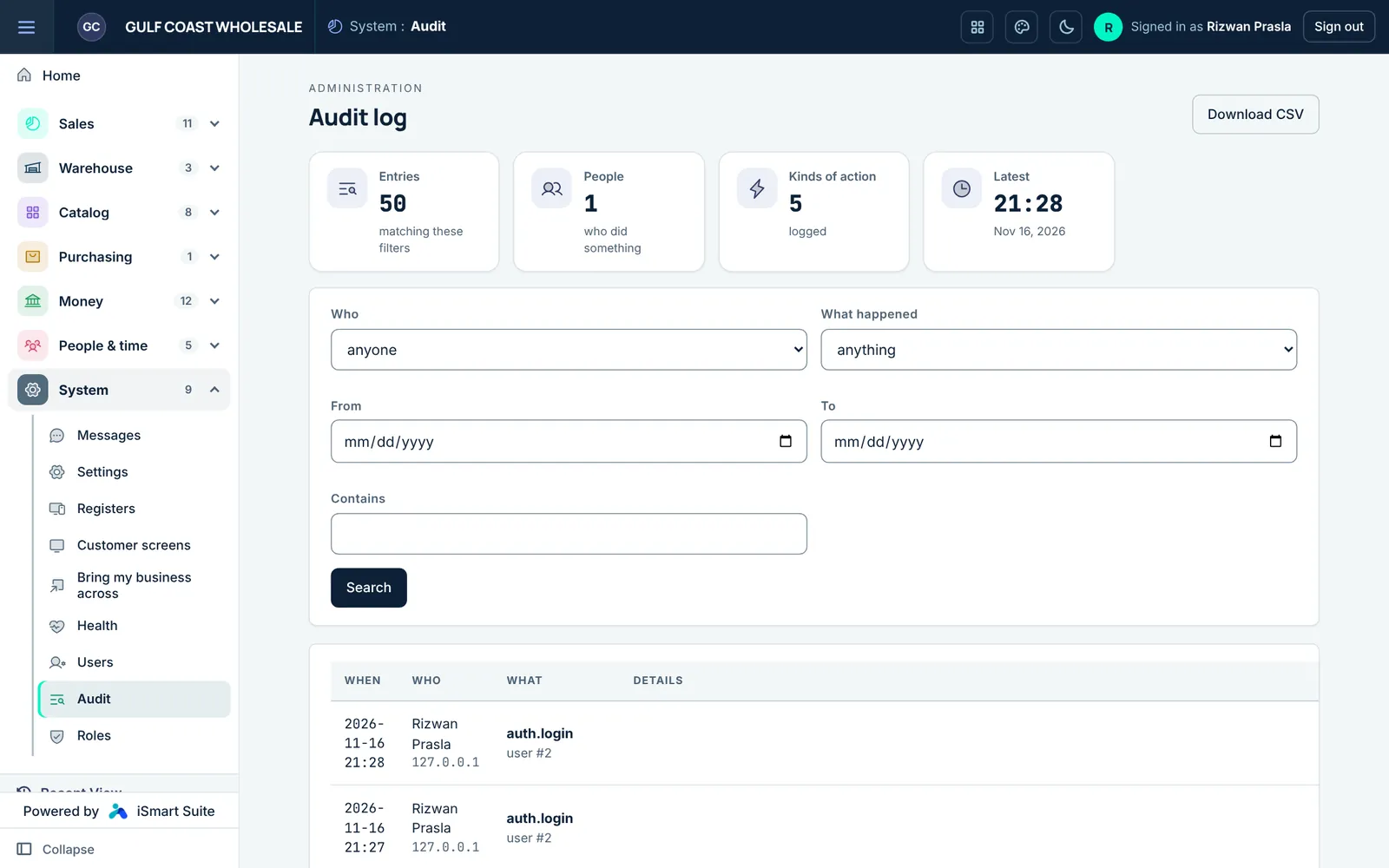
Audit
System → Audit The page is headed “Audit log”.
Who did what, and when.
What you do here
- Filter by person, by what happened, by date, or by a word.
- Download the log as a spreadsheet.
Usually used by Owner / Admin
Health
System → Health
A list of checks on the workspace itself: email, the nightly backup, daily jobs, disk space and recent errors.
What you do here
- See what is passing, what needs a look and what is failing.
Usually used by Owner / Admin