
Catalog
What you sell, what it costs, and how customers see it. Products, prices, promotions and how your online store looks.
Catalog
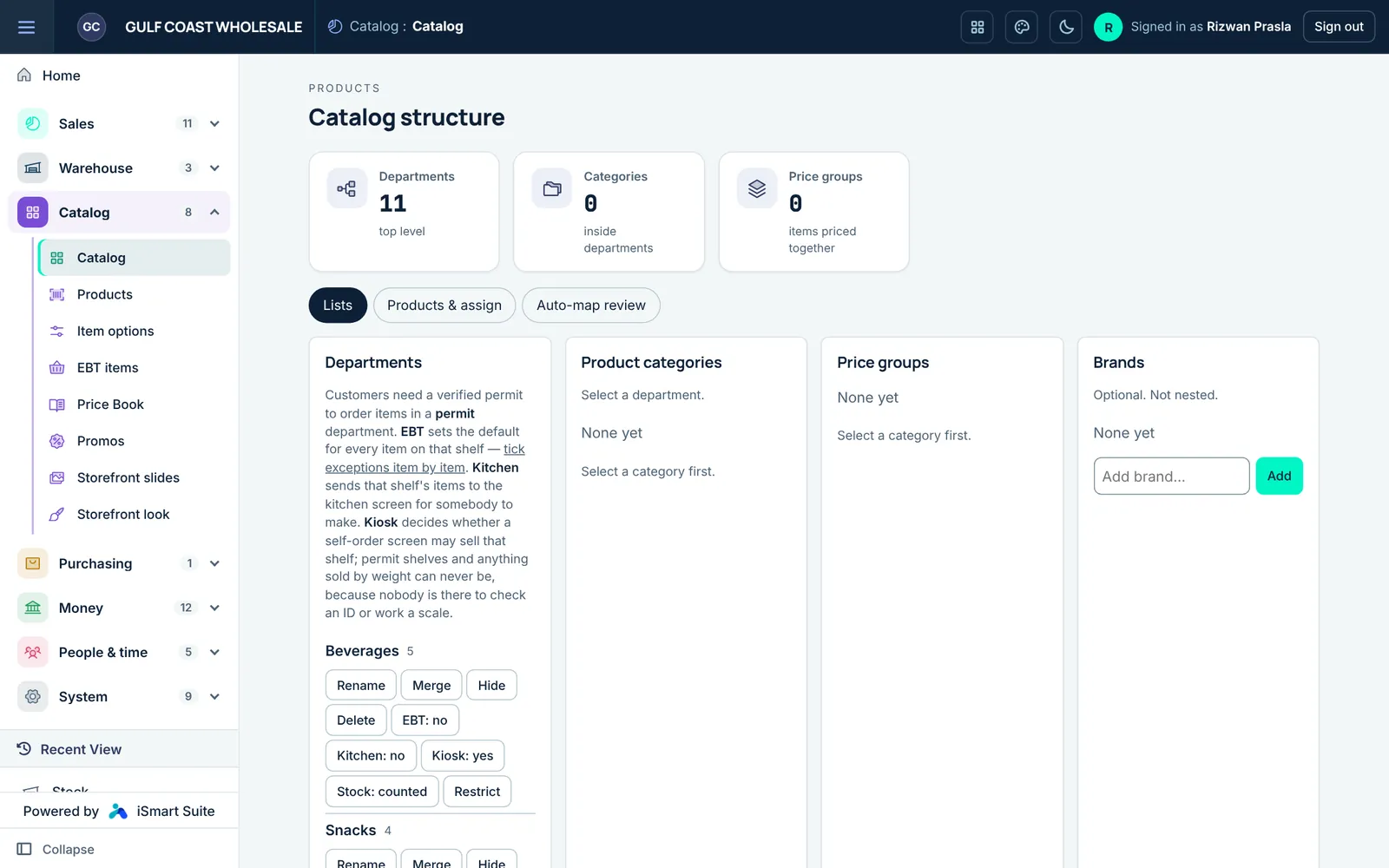
Catalog → Catalog The page is headed “Catalog structure”.
The shelves your products sit on: departments, categories inside them, price groups and brands.
What you do here
- Add, rename, merge or hide a department.
- Mark a department as needing a permit, so only verified stores can order from it.
- Switch to “Products & assign” to file products into departments in bulk.
- Review the automatic suggestions for uncategorized products.
Usually used by Owner / AdminInventory manager
Step by step: Set up departments, categories, price groups and brands
Products
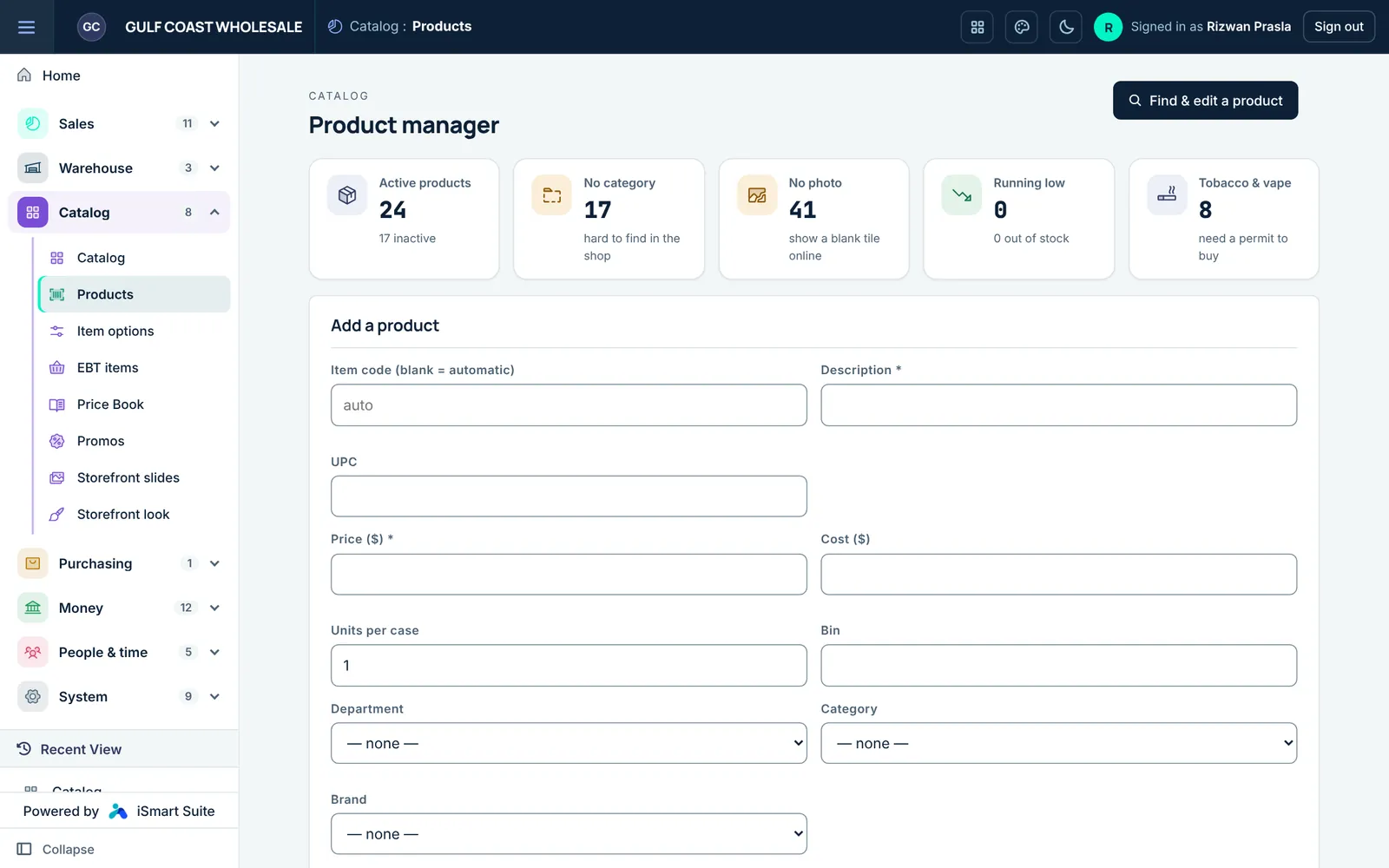
Catalog → Products The page is headed “Product manager”.
Add a product, or find one to edit.
What you do here
- Add a product: description, UPC, price, cost, units per case, bin, department, category, brand.
- Leave the item code blank and the next one is assigned.
- Open a product to move it to another department, category or brand. A product with no department does not show in the online store.
- See how many products have no category or no photo.
Usually used by Owner / AdminInventory manager
Price Book
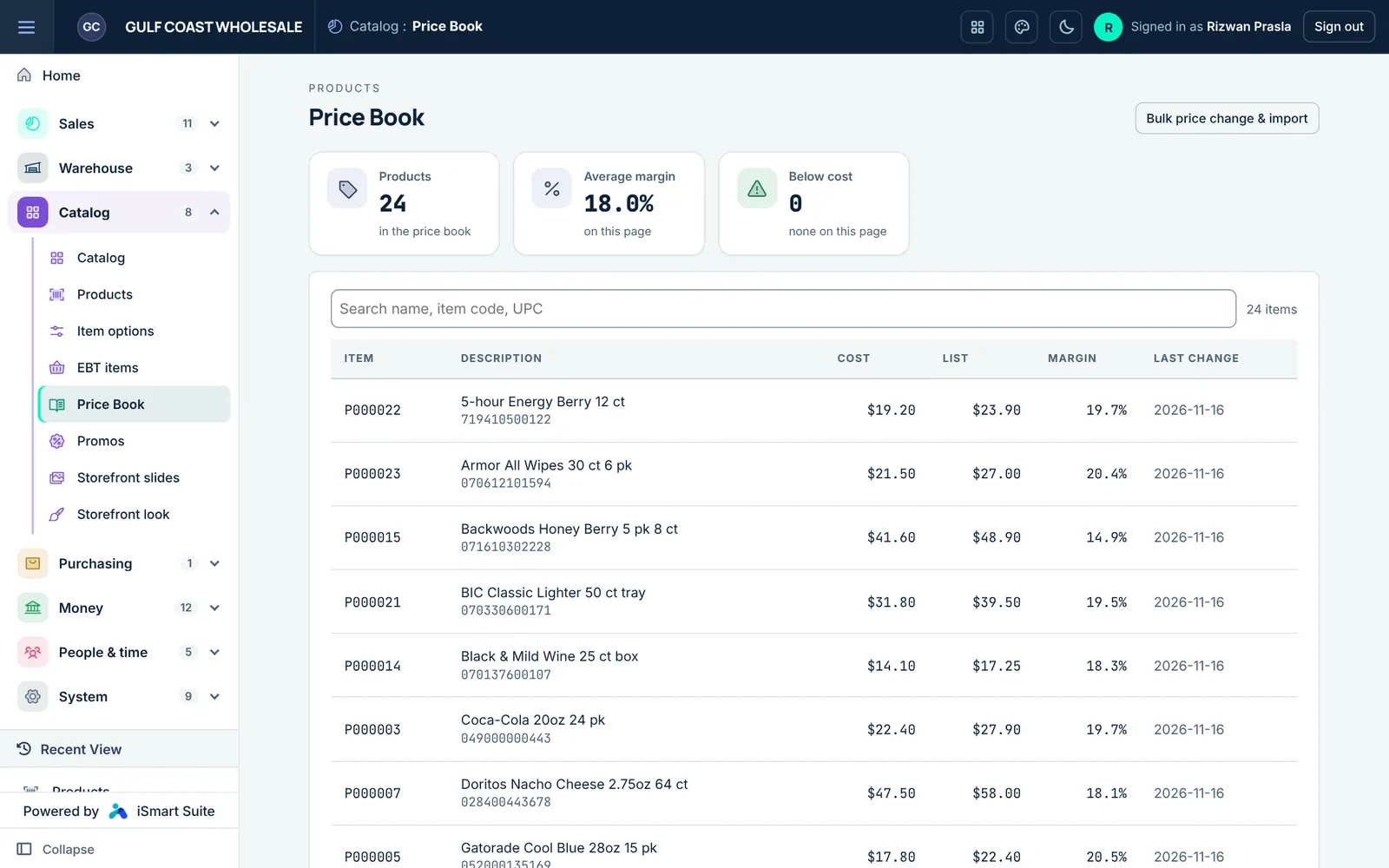
Catalog → Price Book
Cost, list price and margin for every product, with the date each last changed.
What you do here
- Spot anything priced below cost.
- Change many prices at once, or import them from a spreadsheet.
Usually used by Owner / AdminInventory manager
Promos
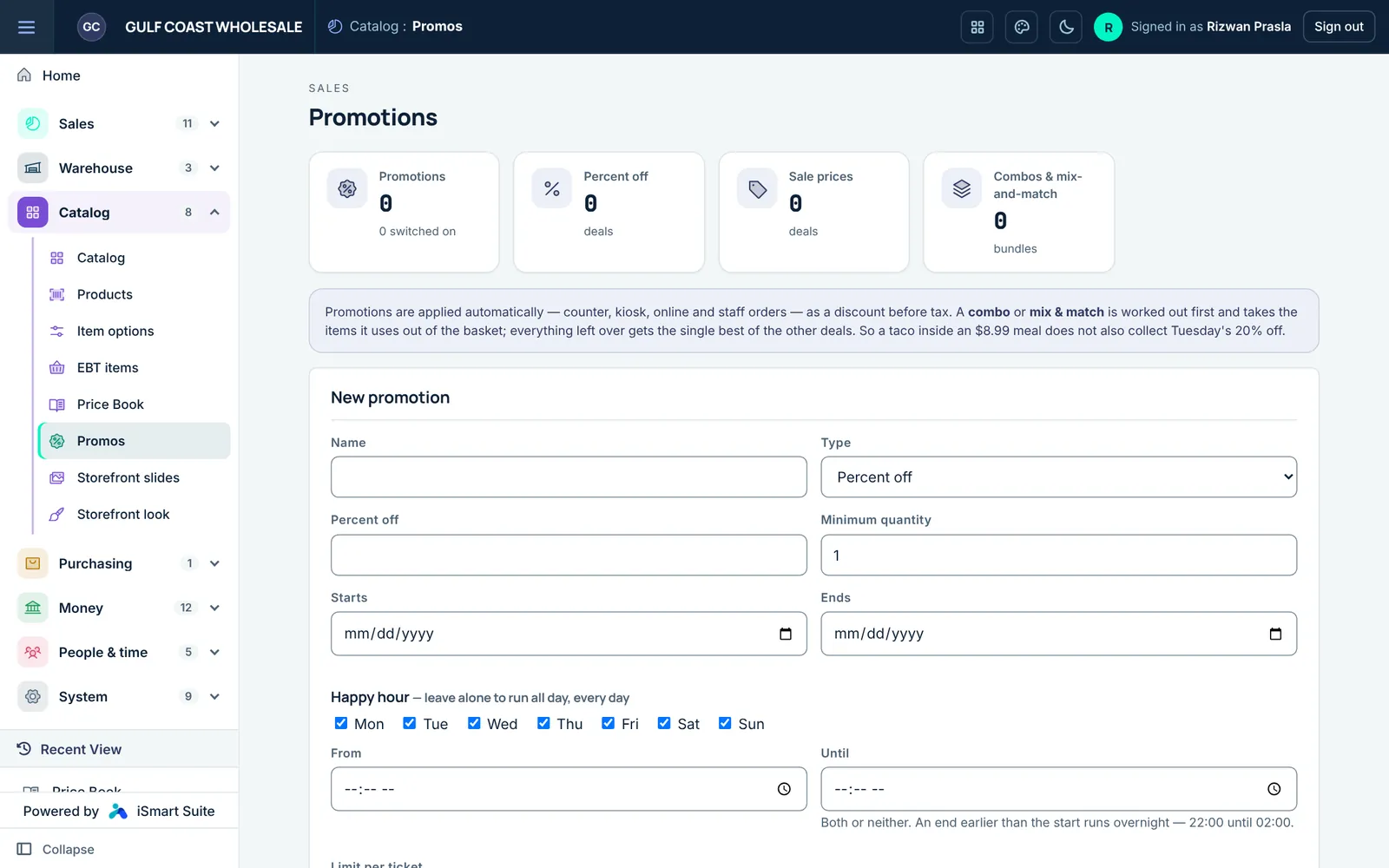
Catalog → Promos The page is headed “Promotions”.
Discounts that apply by themselves: percent off, sale prices, and combos or mix-and-match.
What you do here
- Give a promotion a start date, an end date and a minimum quantity.
- Limit it to certain days and hours.
- It applies everywhere at once: counter, online store and staff orders.
Usually used by Owner / AdminSales manager
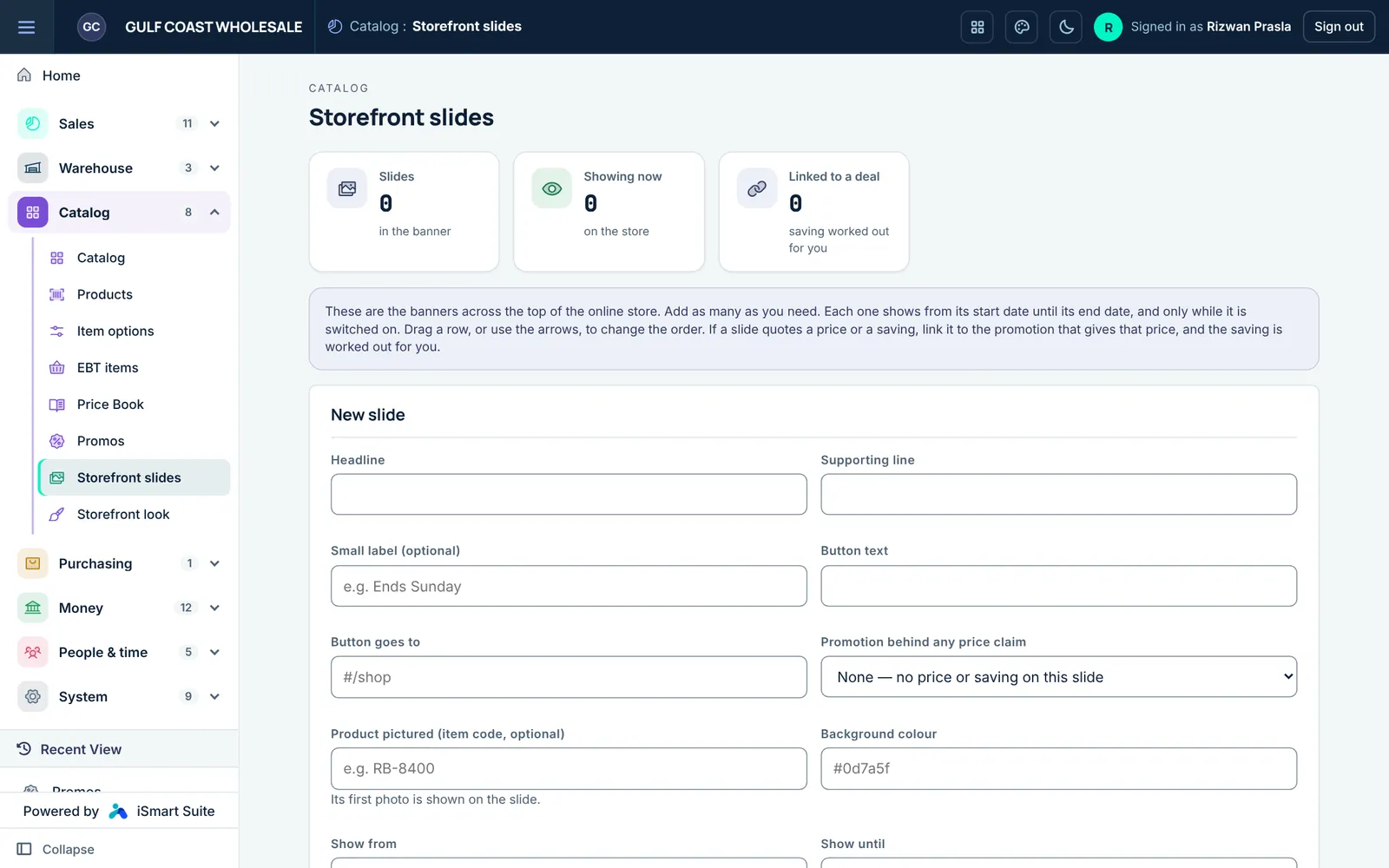
Storefront slides
Catalog → Storefront slides
The banners across the top of your online store.
What you do here
- Write a headline, a supporting line and a button.
- Link a slide to a promotion so the saving it quotes is worked out for you.
- Set the dates it shows from and until.
Usually used by Owner / Admin
Storefront look
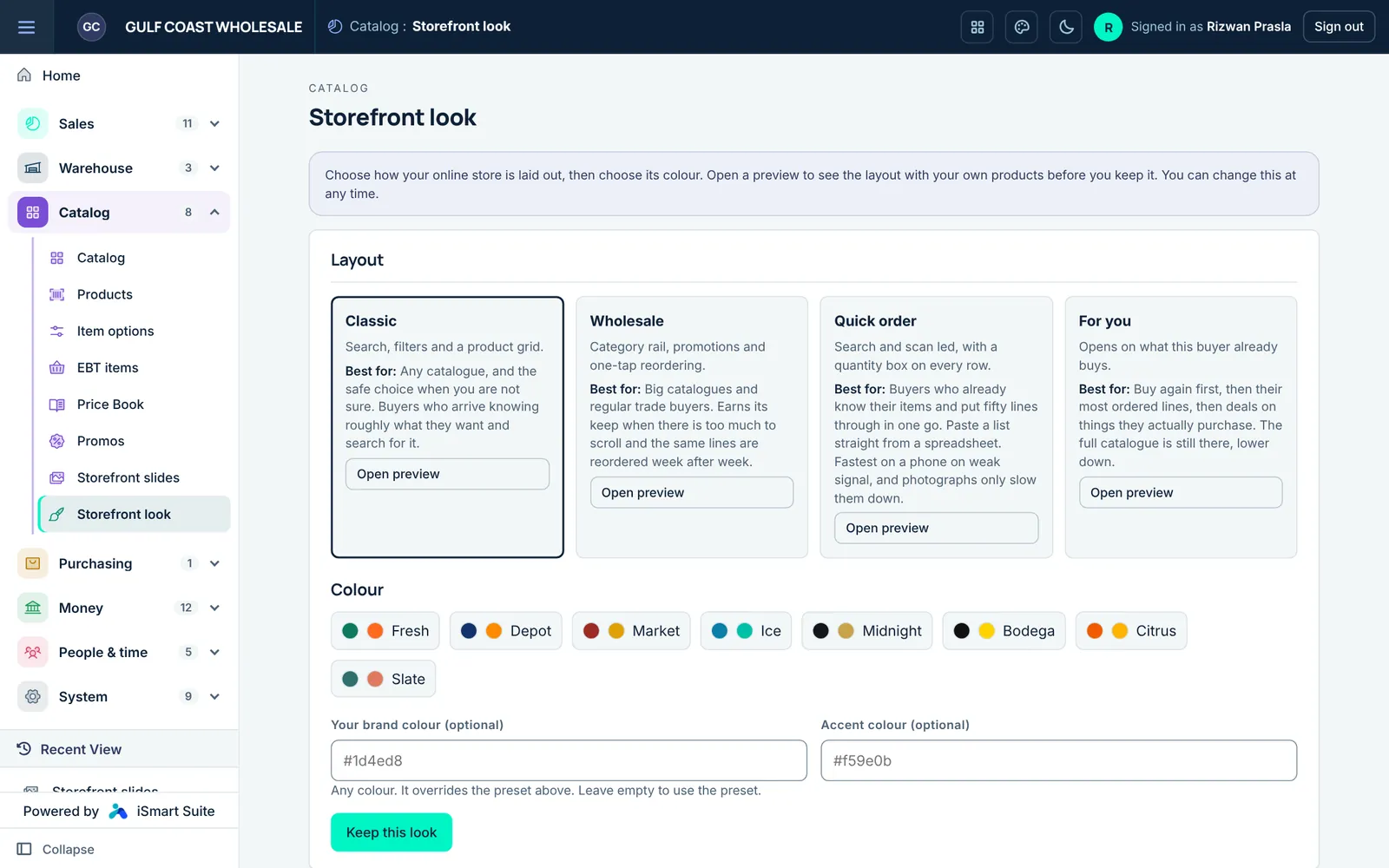
Catalog → Storefront look
How your online store is laid out and coloured.
What you do here
- Choose a layout: Classic, Wholesale, Quick order or For you.
- Open a preview with your own products before you keep it.
- Choose a colour set, or enter your own brand colour.
Usually used by Owner / Admin
Item options
Catalog → Item options
Questions an item asks when it is sold, such as size or toppings. Made for food counters; most distributors leave it empty.
Usually used by Owner / Admin
EBT items
Catalog → EBT items The page is headed “What EBT can pay for”.
Which items EBT may pay for. Only matters if you also sell to the public at a counter.
Usually used by Owner / Admin