
Create, post and send an invoice
Start an invoice for a store, add the items, post it, and print or email it.
For: Owner / Admin, Sales manager · about 4 minutes
Step by step
Where:
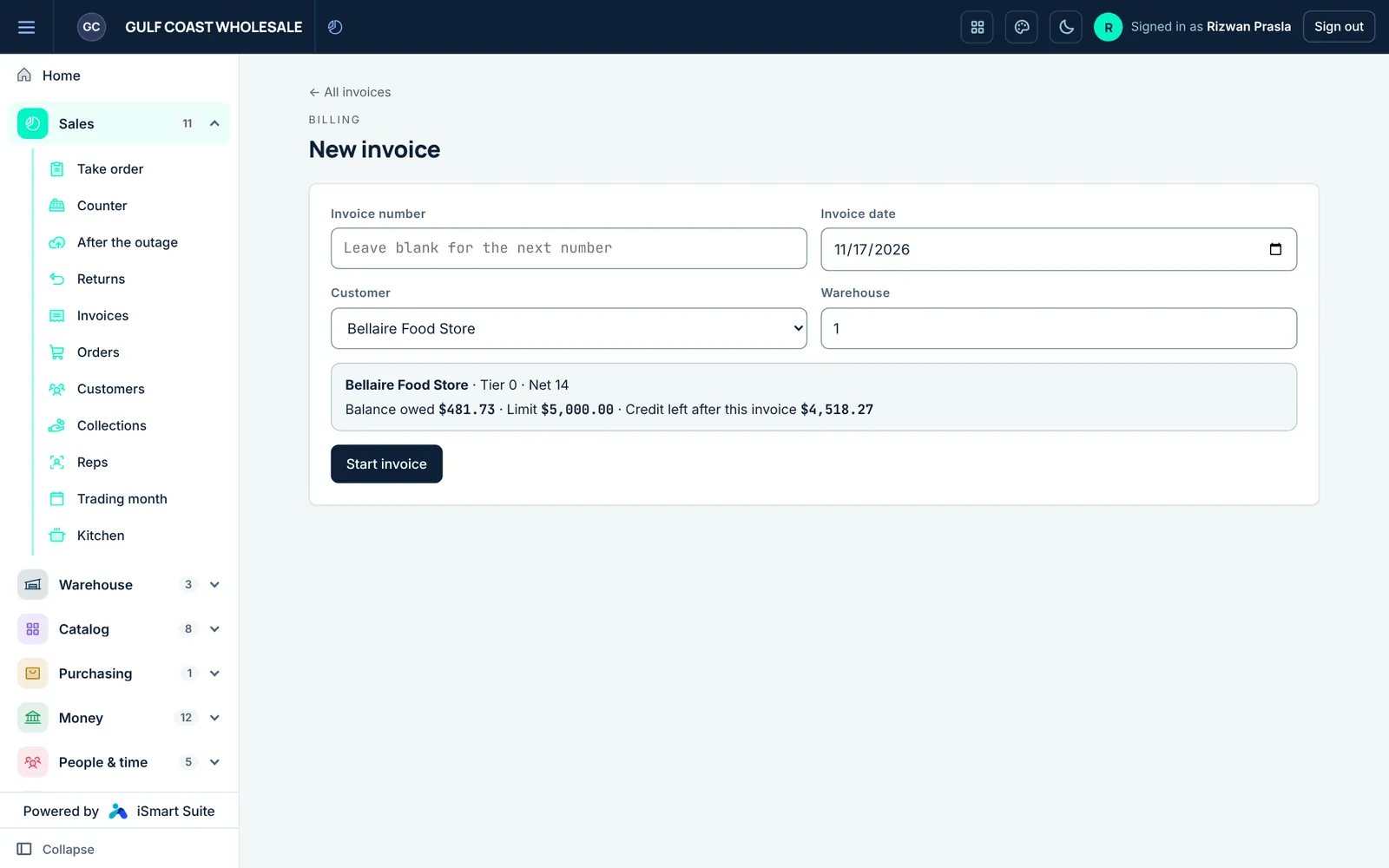
Sales → Invoices → New invoiceChoose the customer and the invoice date
Leave the invoice number blank and the next one is used. The grey box under the customer shows their price tier, terms, balance owed, credit limit and the credit left after this invoice.
Press Start invoice
This creates the draft and gives it its number.
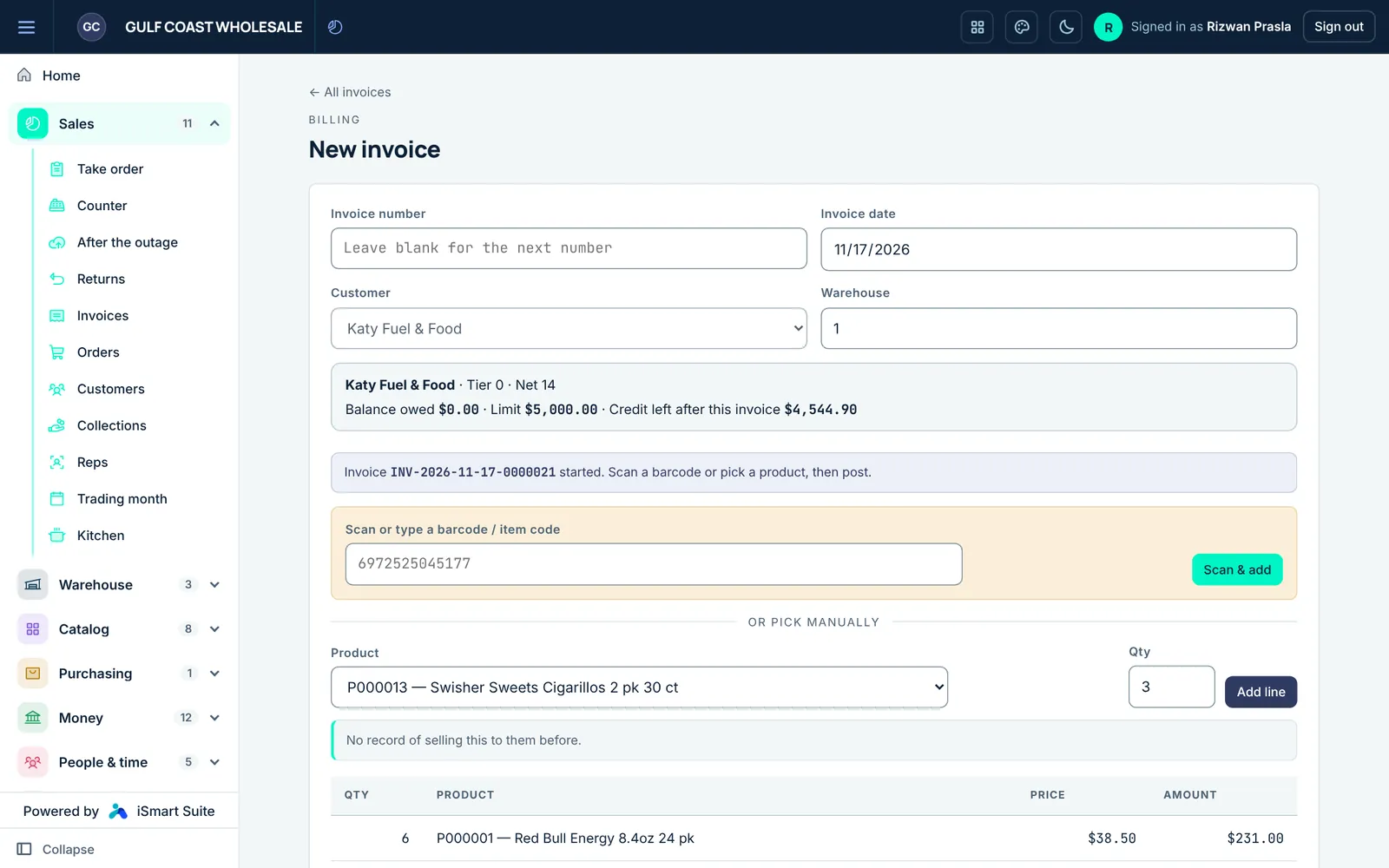
Add each item: scan its barcode and press Scan & add, or pick the product, type the quantity and press Add line
The price comes from the customer’s price tier and any special price you have set for them. A note under the product shows the last price you sold it to this store at.
Post the invoice
Posting takes the stock and makes the invoice count as money owed. It also counts toward your plan’s invoices for the month.
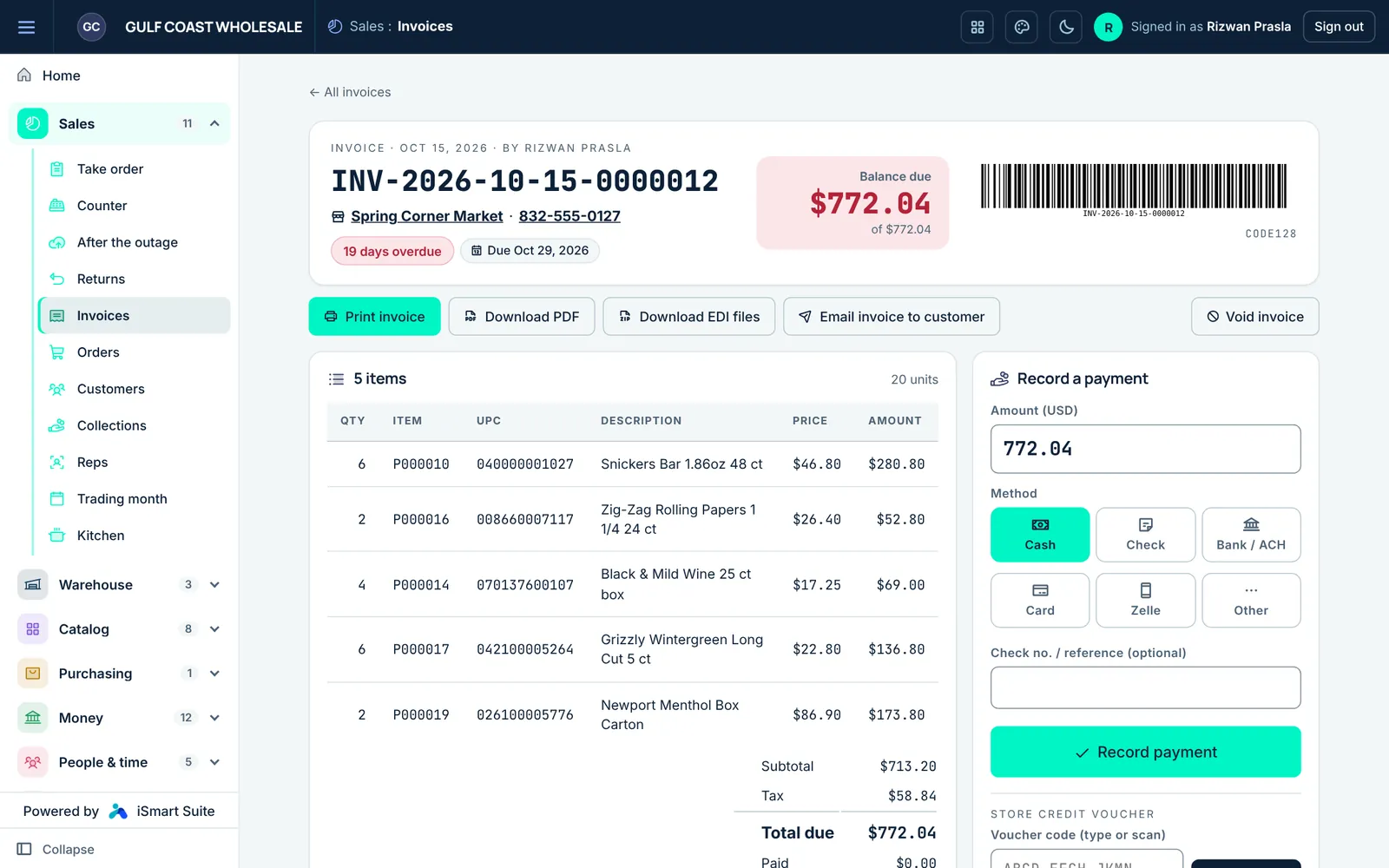
Press Print invoice, Download PDF or Email invoice to customer
The printed invoice carries a barcode, so the driver or the store can scan it.
Watch out for
- Tobacco and vape lines need the store to have a tobacco permit on file that has not expired. If the permit has lapsed the line is refused; update the permit on the customer page first.
- A draft can be left and finished later. It is under the Drafts filter on the Invoices screen.
- If the invoice would take the store past its credit limit, only someone allowed to override credit limits can go ahead.