Money
Where the money went and what to hand your accountant. Cash drawers, expenses, tobacco records, reports and accounts.
Drawer
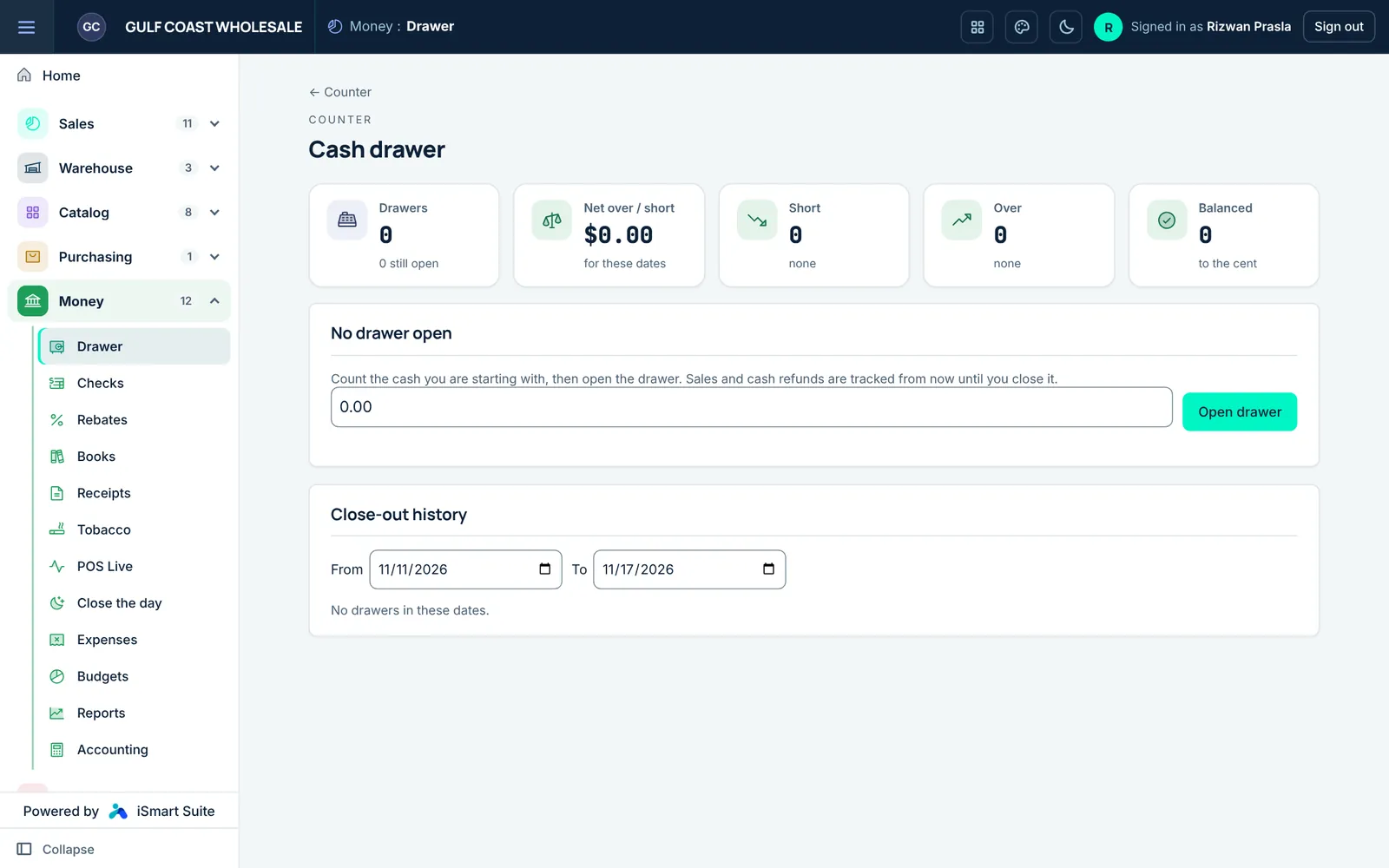
Money → Drawer The page is headed “Cash drawer”.
Open a cash drawer with a counted float, and close it with a count.
What you do here
- Count the cash you are starting with and open the drawer.
- See past close-outs and which were over or short.
Usually used by Owner / AdminSales managerCounter / cashier
POS Live
Money → POS Live
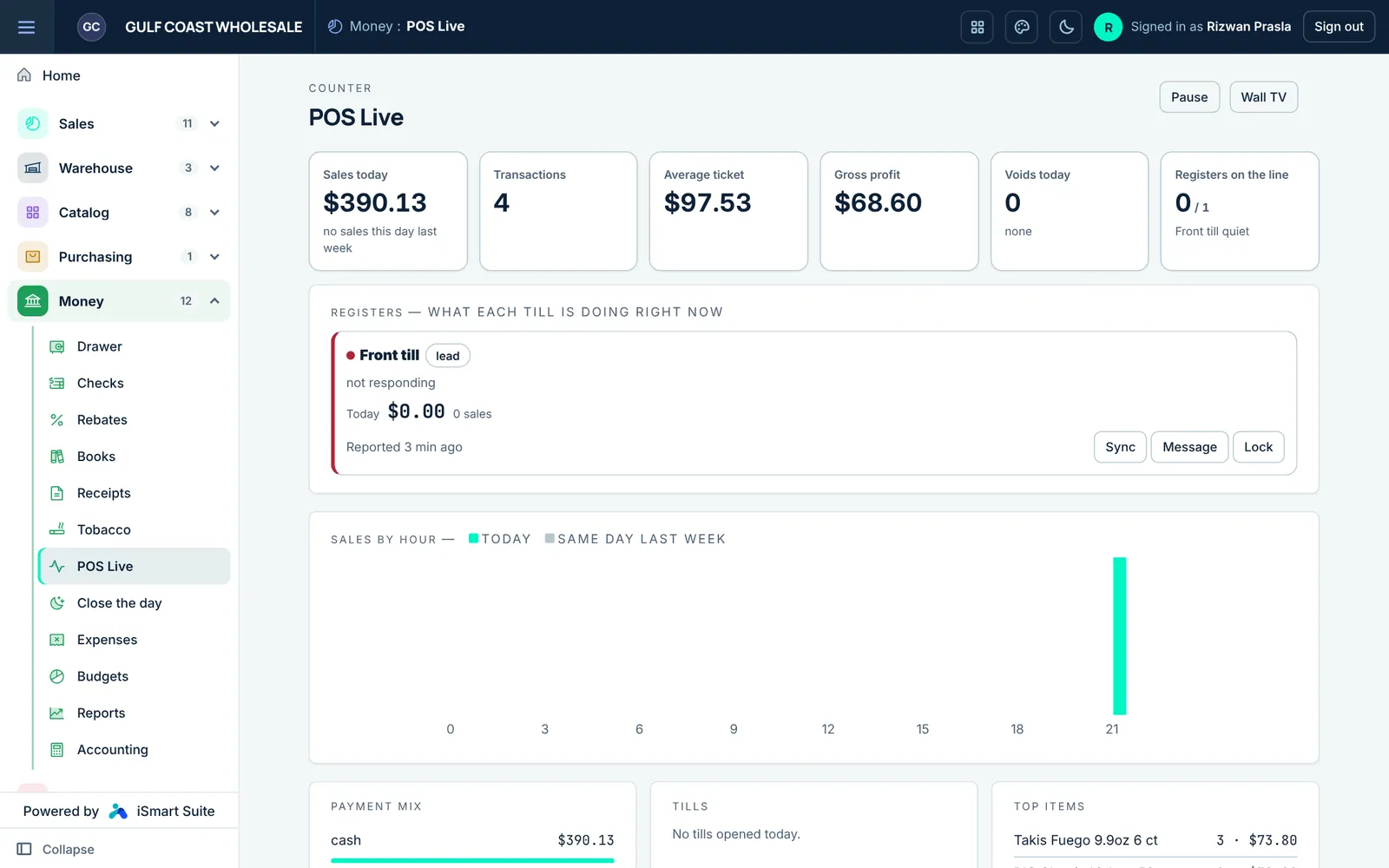
The counter as it is right now.
What you do here
- Watch today’s sales, transactions, average ticket and gross profit.
- Compare sales by hour with the same day last week.
- See the payment mix, each till and the top items.
- Put it on a wall TV.
Usually used by Owner / AdminSales manager
Close the day
Money → Close the day
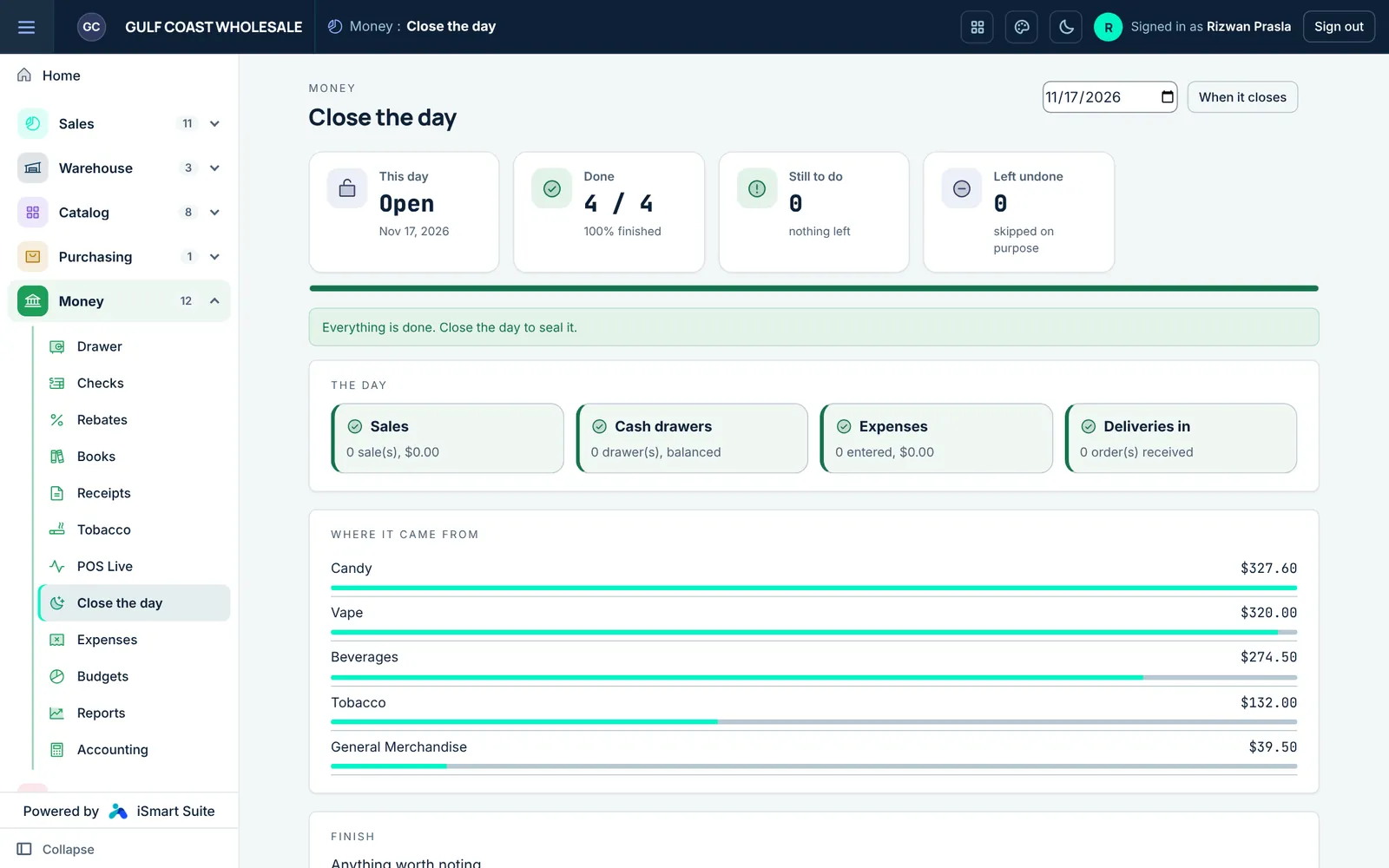
A short checklist that seals the day: sales, cash drawers, expenses and deliveries in.
What you do here
- See what is still to do before the day can close.
- Read where the day’s sales came from, by department.
- Add a note and close the day.
Usually used by Owner / AdminSales managerCounter / cashier
Expenses
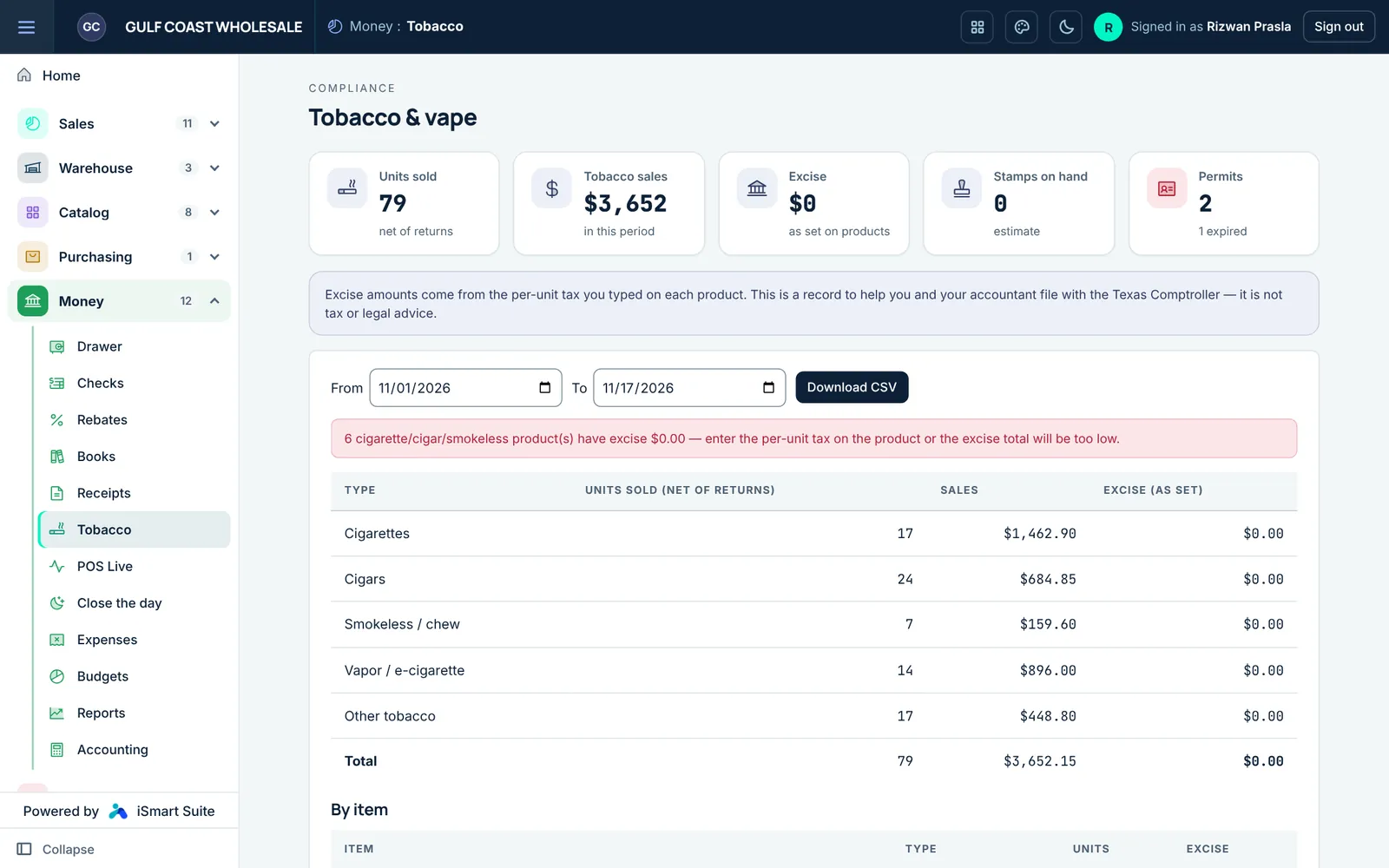
Money → Expenses
Money the business spent that was not stock.
What you do here
- Enter an expense with a category, an amount and a date.
- See what is waiting for approval and what is approved to pay back.
Usually used by Owner / AdminSales manager
Budgets
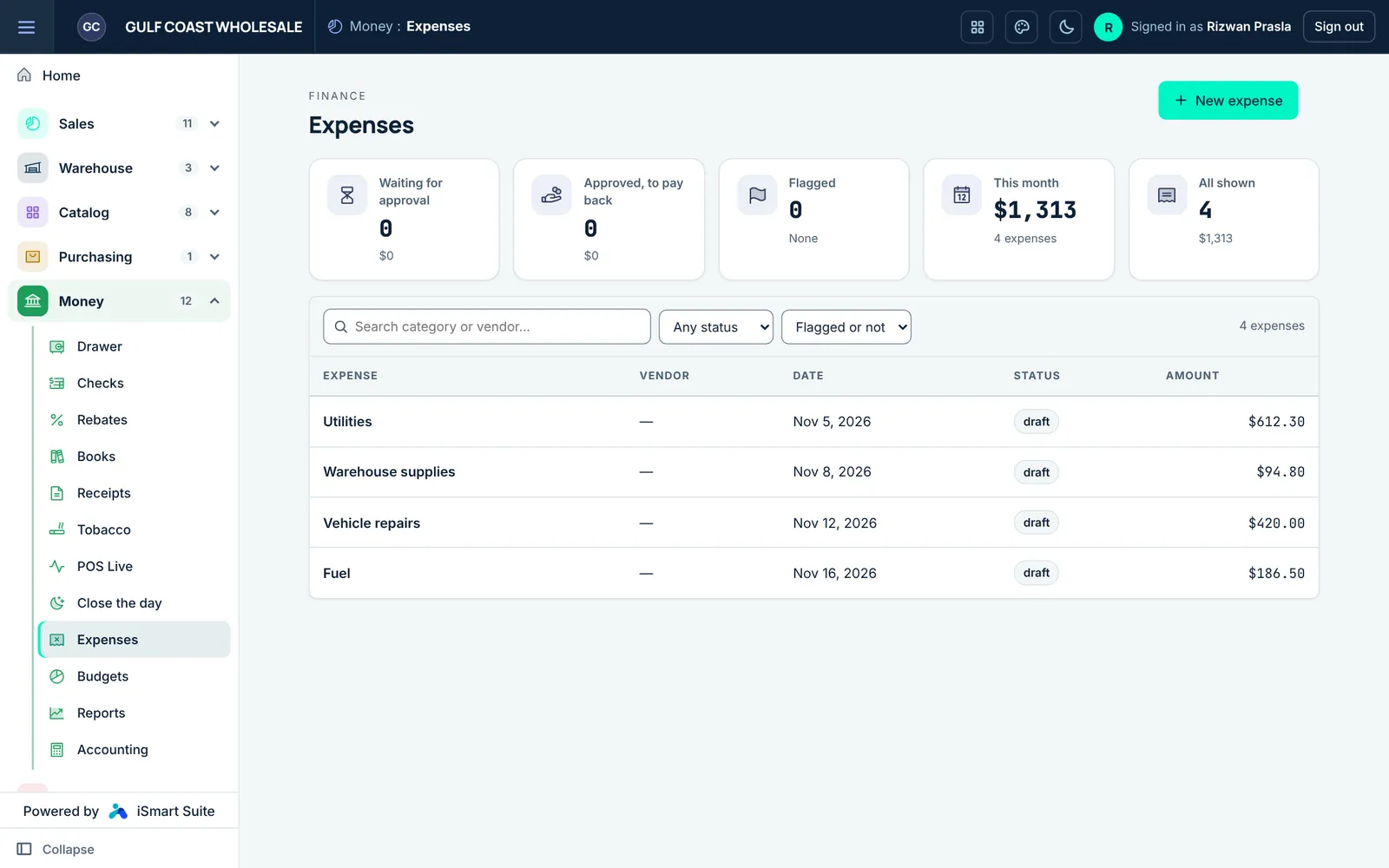
Money → Budgets
A monthly spending limit, overall or by category, and any vendor bills that are overdue.
What you do here
- Set a budget.
- See overdue vendor bills.
Usually used by Owner / Admin
Receipts
Money → Receipts
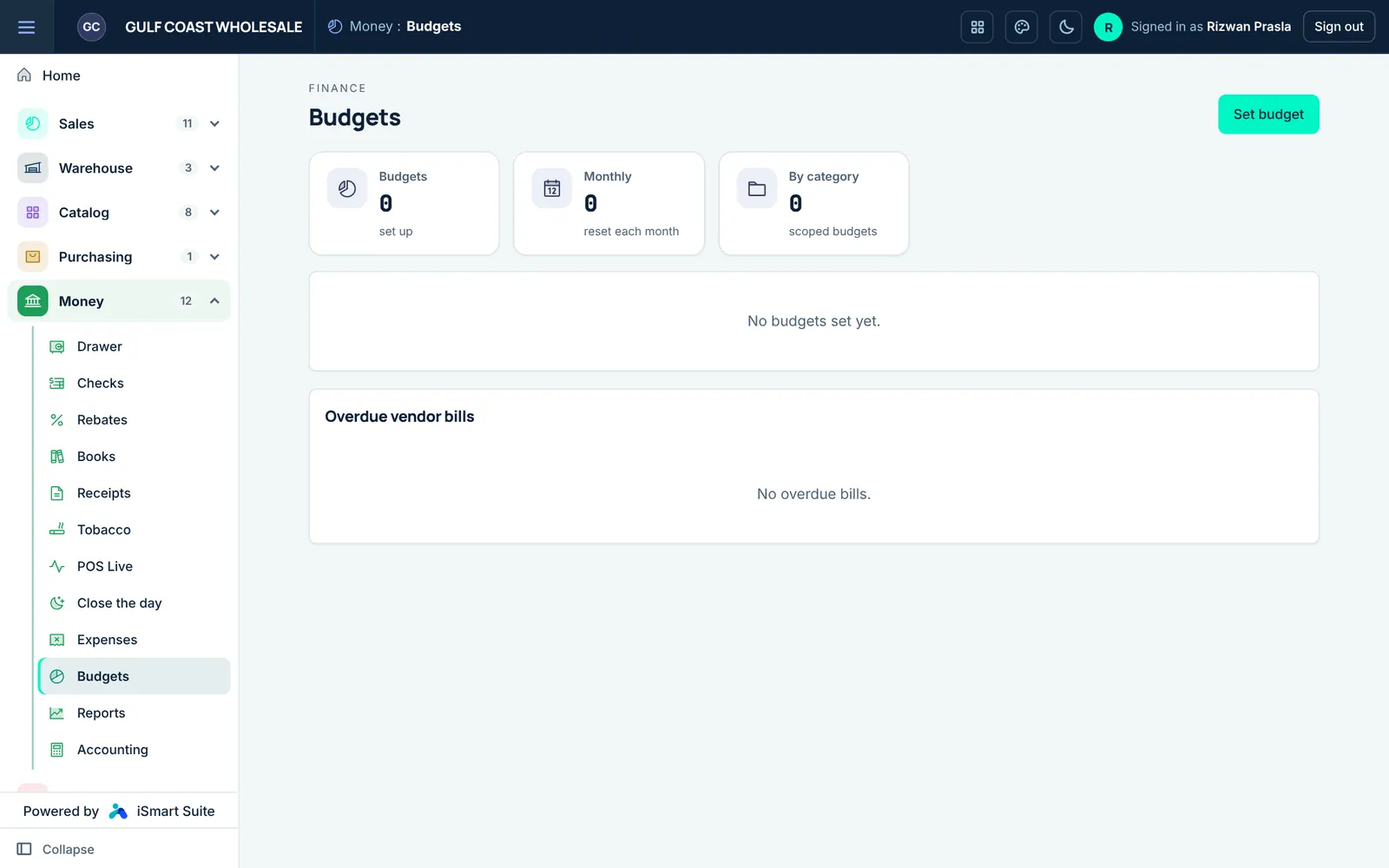
Photos of purchase and expense receipts, kept as encrypted PDFs.
What you do here
- Scan a receipt with the phone’s camera.
- Find one by name, vendor, type or date.
- Download several at once. Every time someone opens one, it is logged.
Usually used by Owner / AdminInventory managerSales manager
Tobacco
Money → Tobacco The page is headed “Tobacco & vape”.
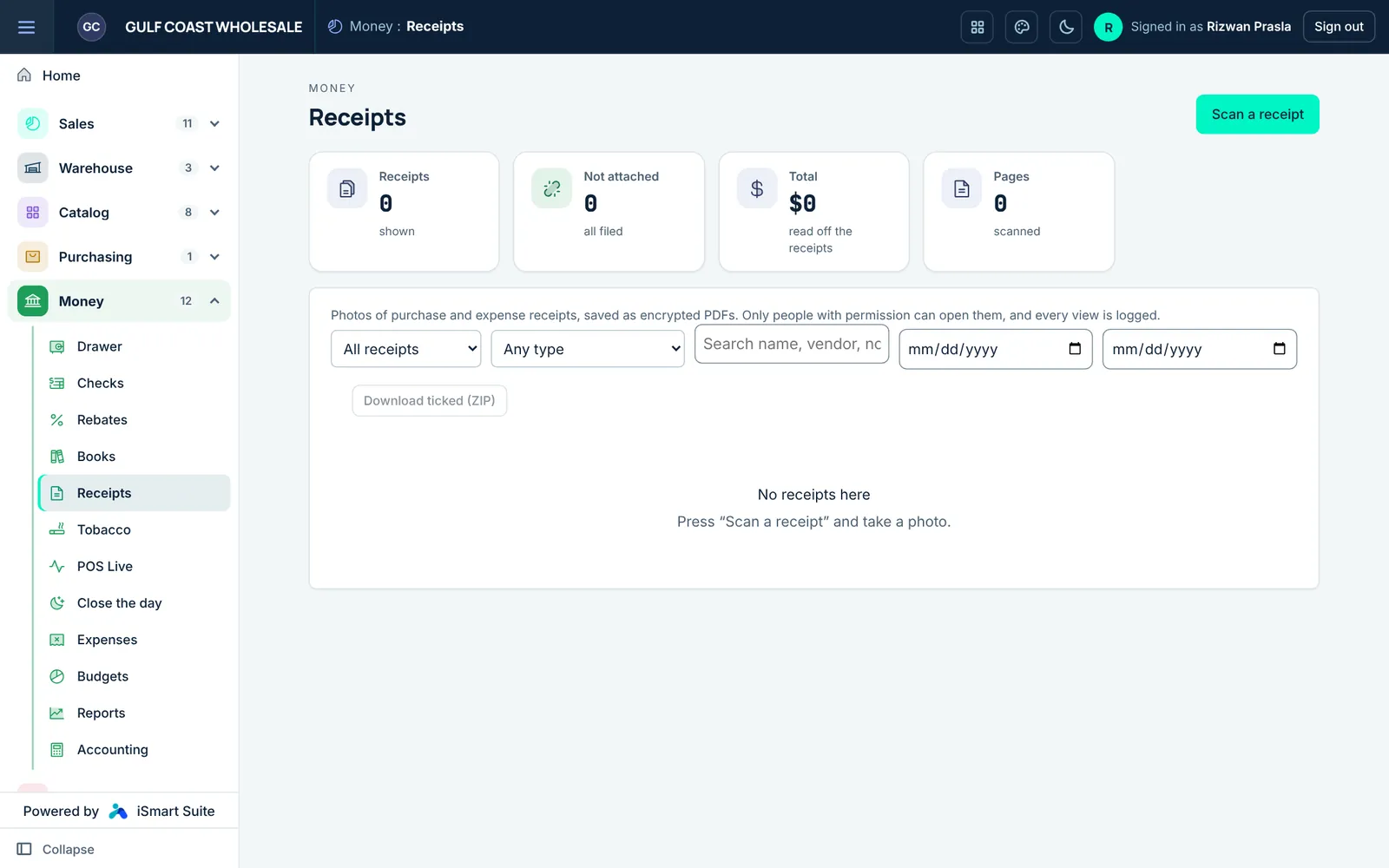
Units sold, sales and excise for cigarettes, cigars, smokeless, vapor and other tobacco, plus permits that need attention.
What you do here
- Pick a date range and download the figures as a spreadsheet.
- See a warning when tobacco products have no excise amount entered.
- Excise comes from the per-unit tax typed on each product. It is a record for you and your accountant, not tax advice.
Usually used by Owner / AdminSales manager
Fuel
Money → Fuel
Pump readings, tank levels and fuel deliveries for a store with a forecourt.
What you do here
- Set up the forecourt once: tanks, pumps and grades.
- Type the total off each pump at the end of the day; the first reading only sets the starting point.
- Press Dip it to record a tank reading, and A truck came when fuel is delivered.
Usually used by Owner / AdminSales manager
Lottery
Money → Lottery
The lottery bins at the counter: which ticket each book is on, and the prizes paid out.
What you do here
- Type the ticket number showing in each bin at the shift change.
- Press Prize paid out for every winning ticket you cash.
- Open Books & games to activate a new book or settle a finished one.
Usually used by Owner / AdminSales managerCounter / cashier
Lottery money
Money → Lottery money
What the state lottery is owed for each period, and what it took from the bank.
What you do here
- See sales, prizes paid and the amount due for the period.
- Type what the lottery took off the bank statement.
- Press Settle to close the period. A week with more prizes than sales comes back on the next sweep.
Usually used by Owner / AdminSales manager
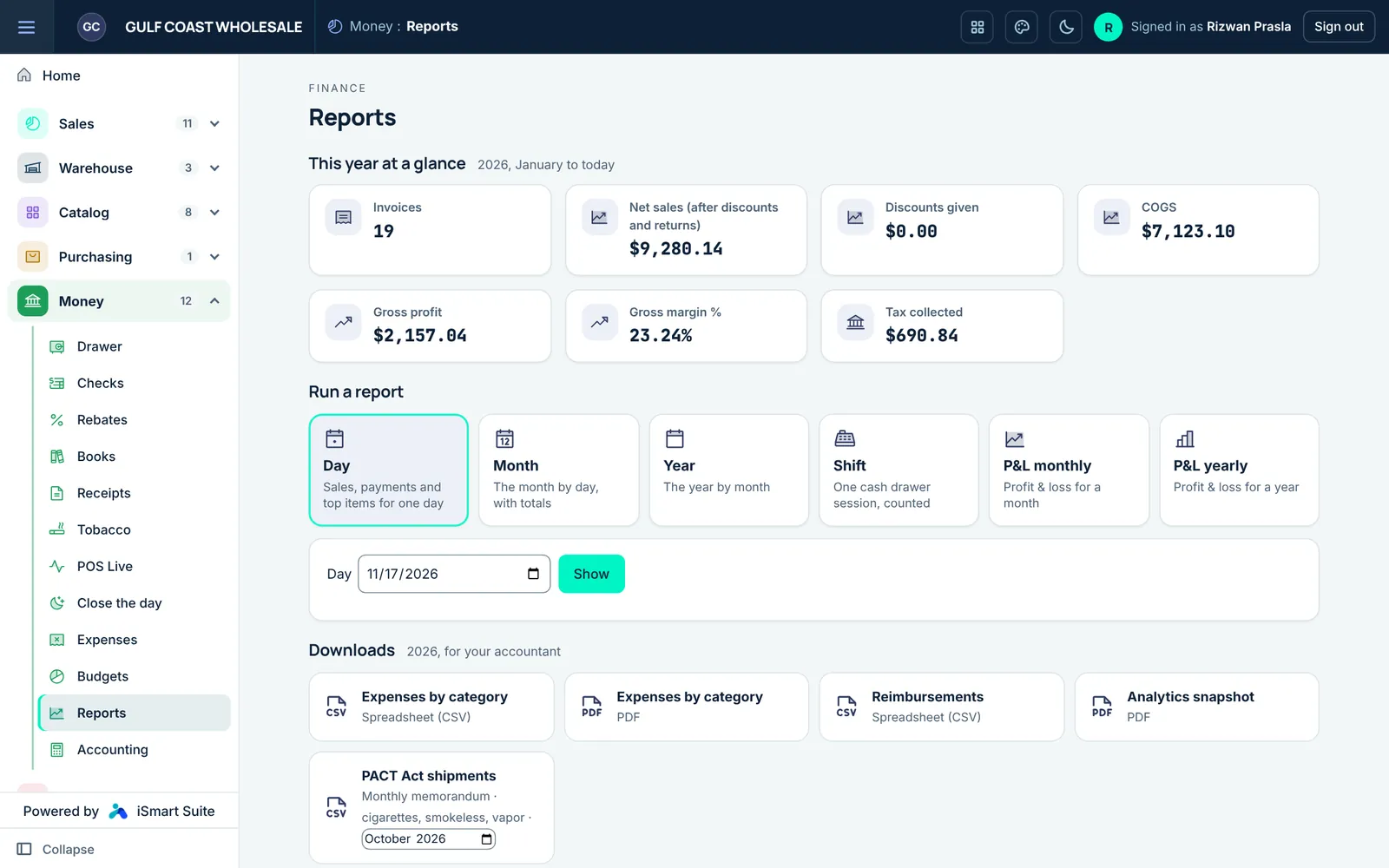
Reports
Money → Reports
The year at a glance, six reports to run, and downloads for your accountant.
What you do here
- Run a Day, Month, Year or Shift report, or a monthly or yearly profit and loss.
- See net sales, cost of goods, gross profit, margin and tax collected for the year so far.
- Download expenses by category, reimbursements and the monthly PACT Act shipments file.
Usually used by Owner / AdminInventory managerSales managerViewer
Accounting
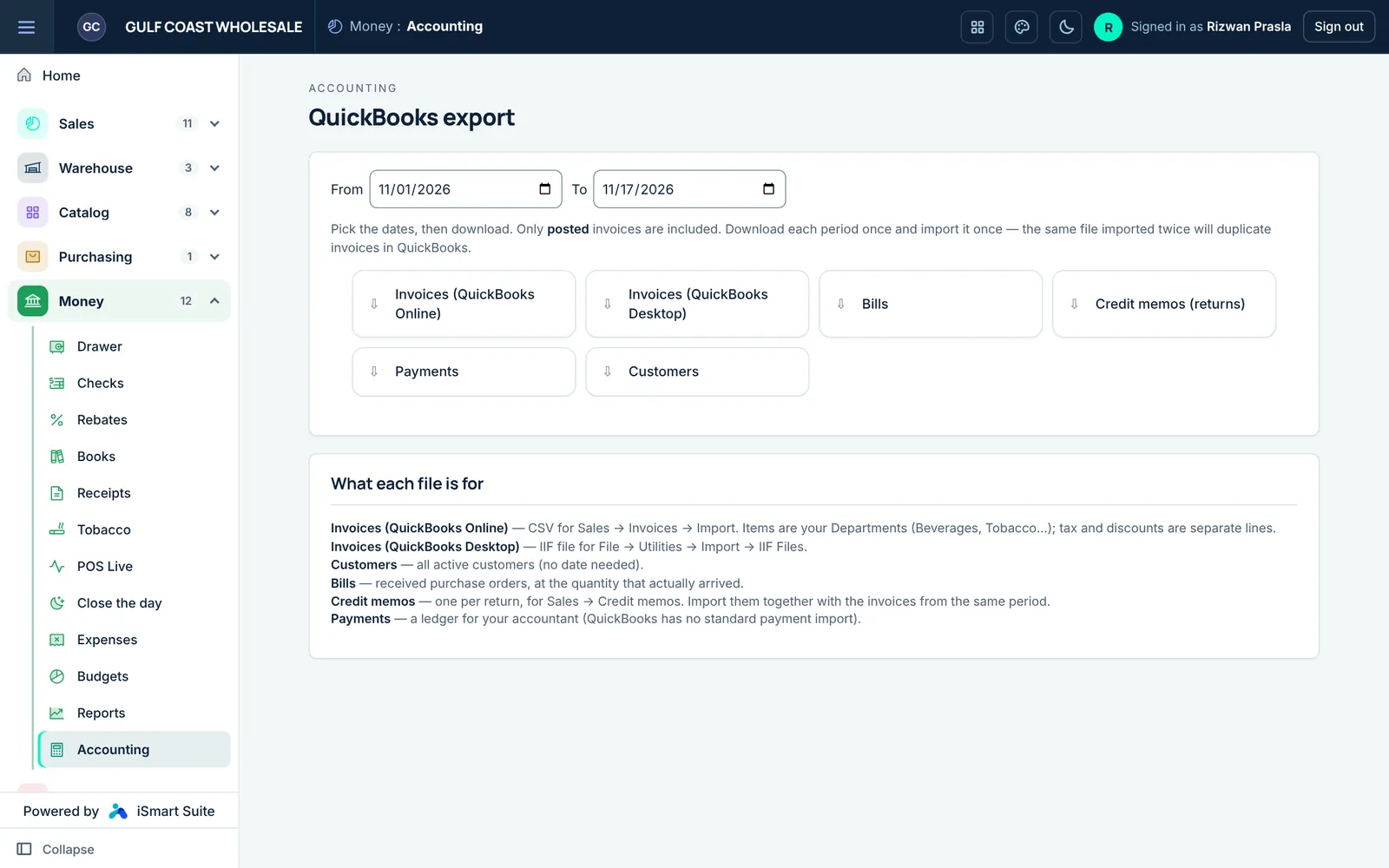
Money → Accounting The page is headed “QuickBooks export”.
Files to bring into QuickBooks: invoices, bills, credit memos, payments and customers.
What you do here
- Pick the dates and download each file.
- Choose QuickBooks Online or QuickBooks Desktop format for invoices.
- Only posted invoices are included.
Usually used by Owner / Admin
Books
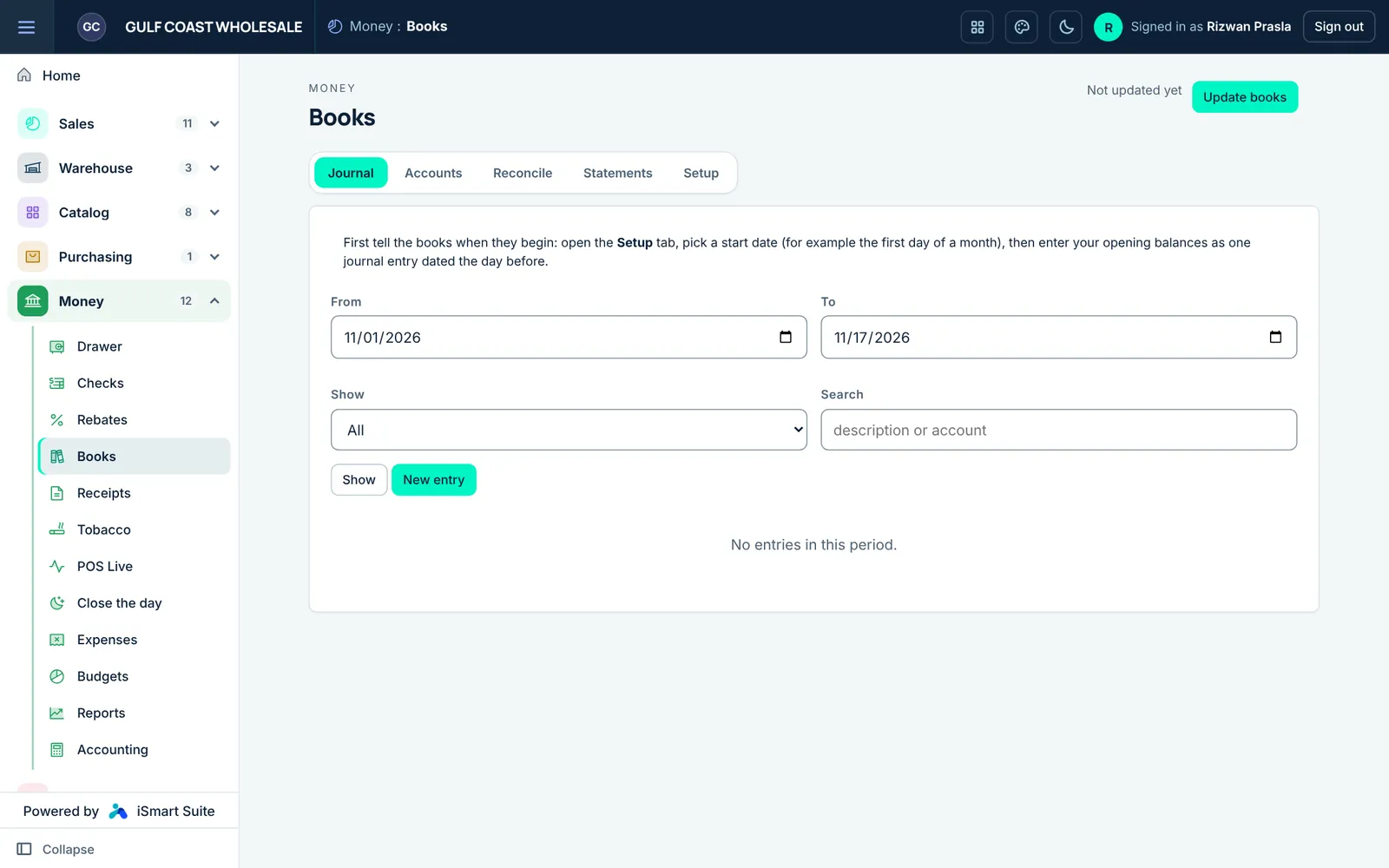
Money → Books
A general ledger for companies that keep their books here: journal, accounts, bank reconciliation and statements.
What you do here
- Set a start date and opening balances under Setup.
- Enter journal entries.
- Reconcile against the bank and print statements.
Usually used by Owner / Admin
Checks
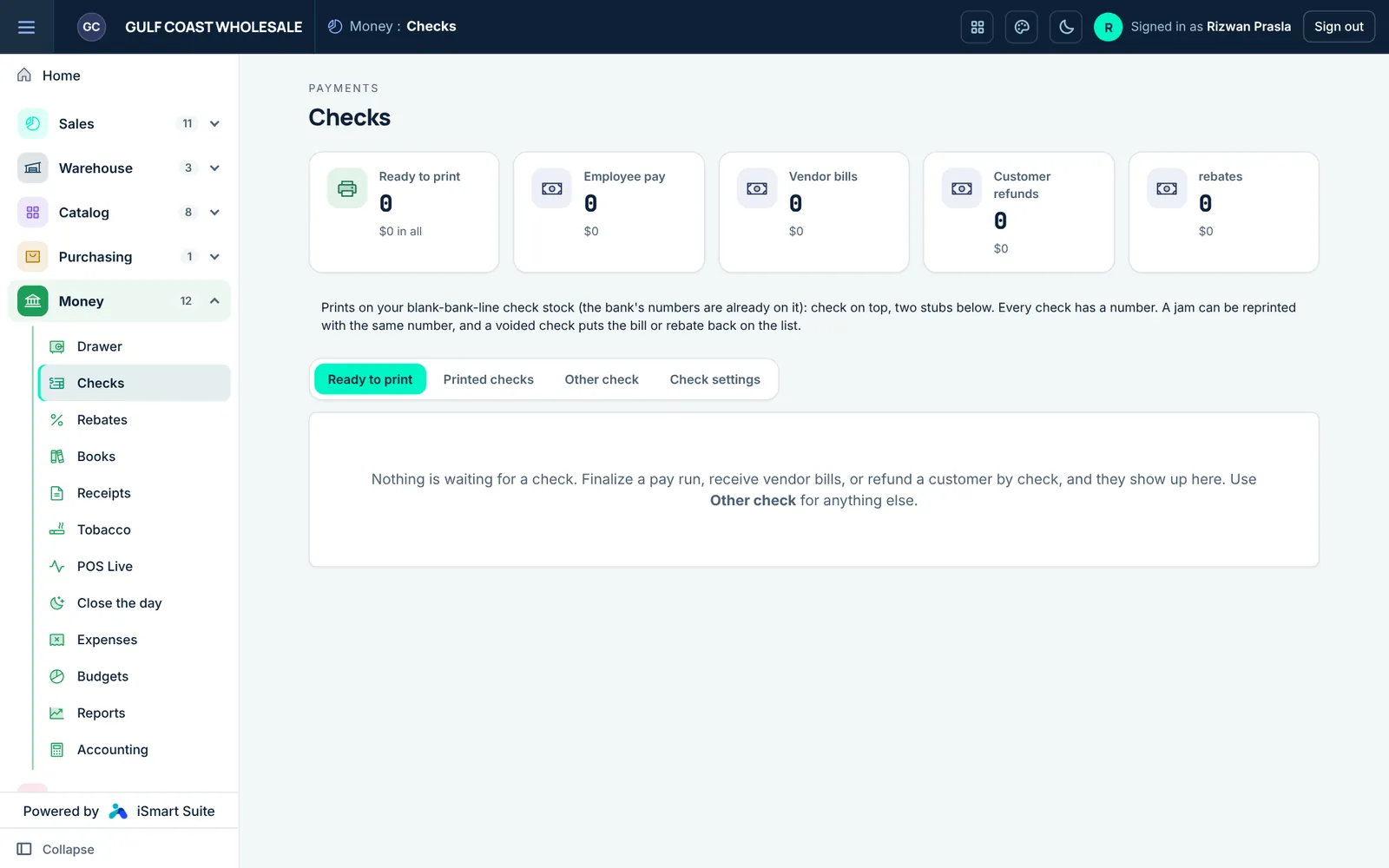
Money → Checks
Print checks on blank check stock for vendor bills, employee pay, customer refunds and rebates.
What you do here
- See what is ready to print.
- Reprint after a jam with the same number, or void a check and put the bill back on the list.
Usually used by Owner / Admin
Rebates
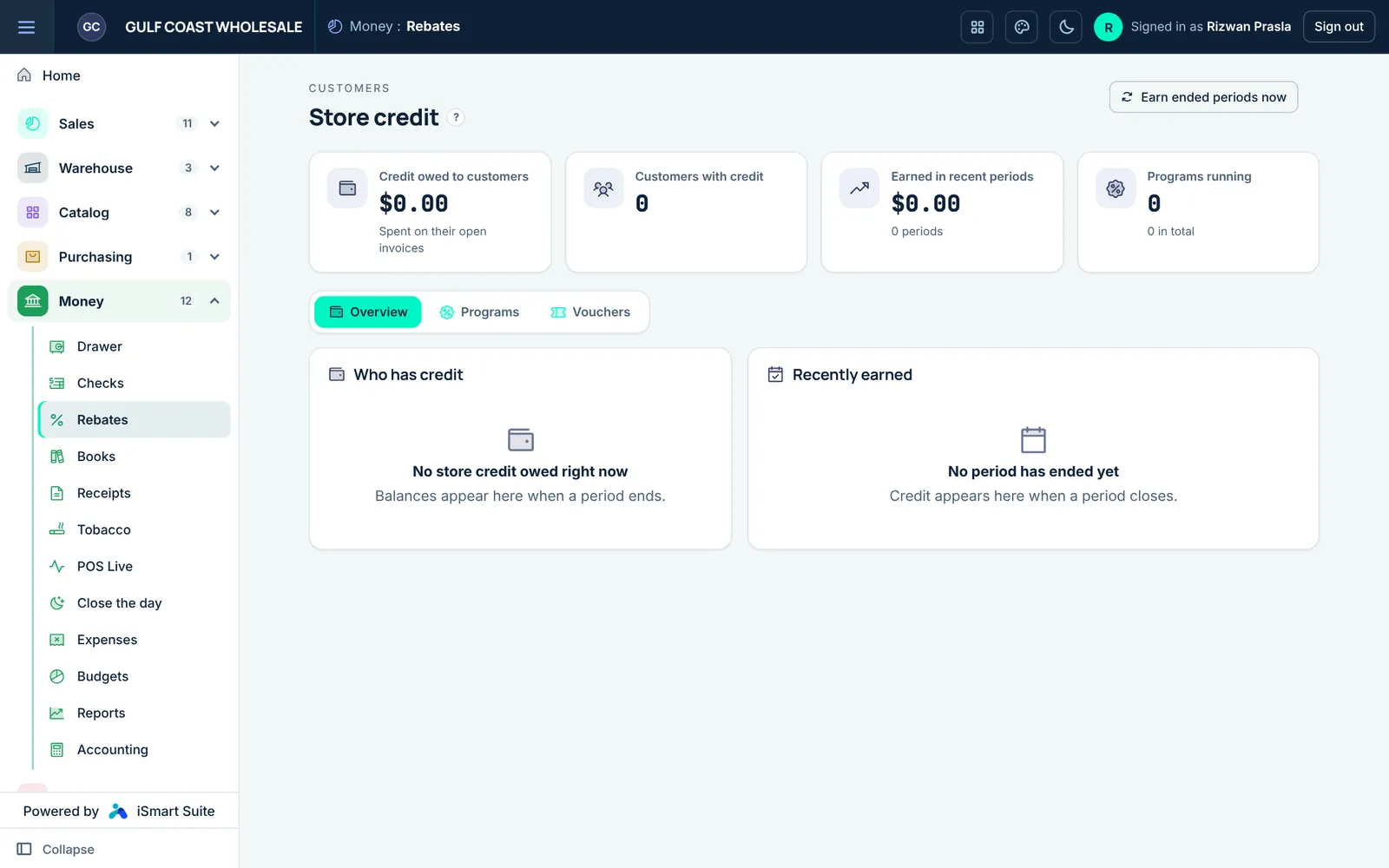
Money → Rebates The page is headed “Store credit”.
Credit your customers earn, the programs that earn it, and vouchers.
What you do here
- See who has credit and how much.
- Set up a program.
- Issue vouchers that are entered on an invoice.
Usually used by Owner / Admin