
Choose how your online store looks
Pick a layout and colours for the store your customers order from, and add banners.
For: Owner / Admin · about 4 minutes
Your stores order from a website with your name on it. You choose how it is laid out, what colour it is, and what the banners across the top say. You can change any of it at any time.
Step by step
Where:
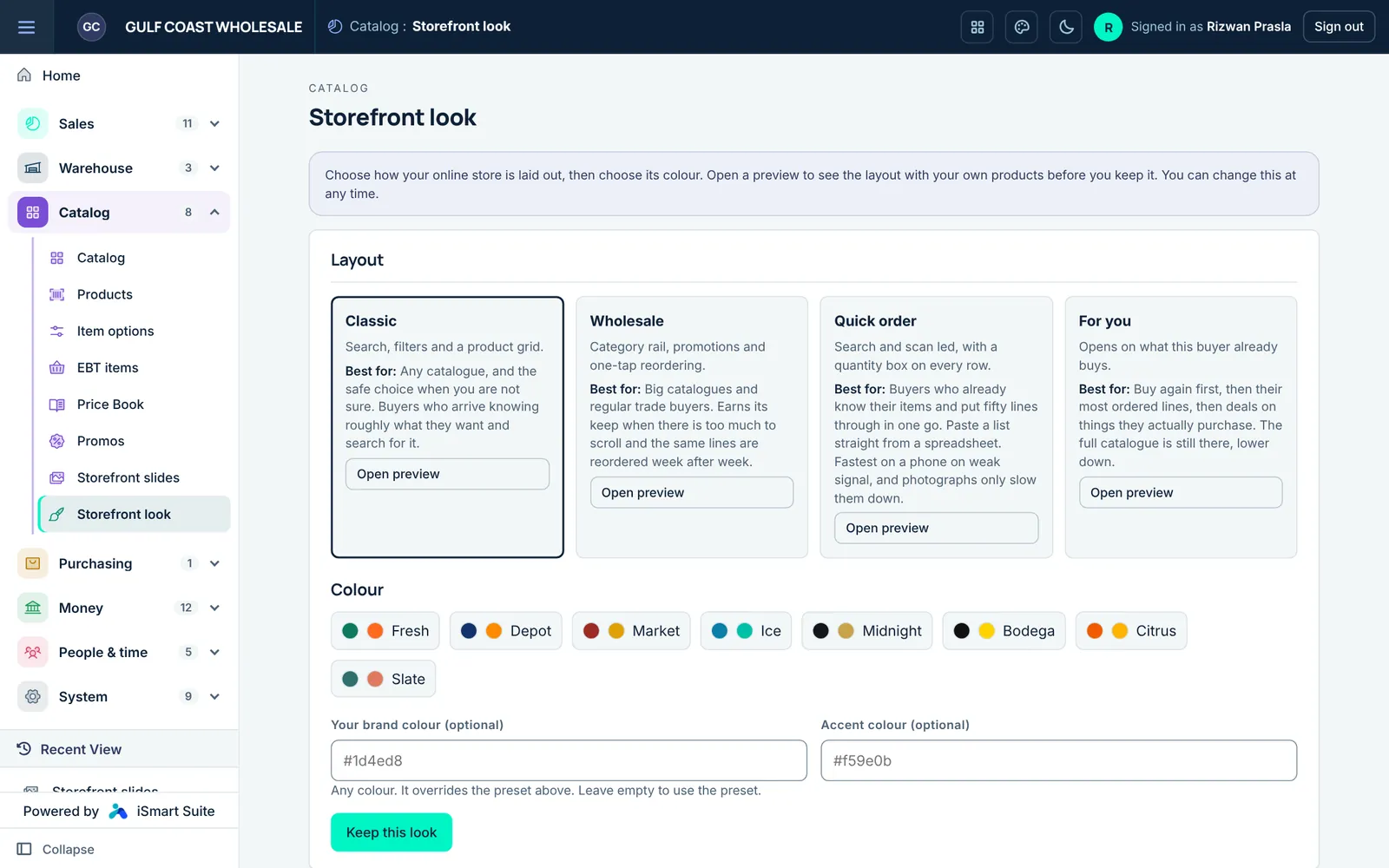
Catalog → Storefront lookRead the four layouts and press Open preview on the ones that fit
Classic is search, filters and a grid. Wholesale leads with categories and one-tap reordering. Quick order is a list with a quantity box on every row. For you opens on what that buyer already buys.
Choose a colour set, or type your own brand colour
Your own colour overrides the set.
Press Keep this look
Nothing changes for your customers until you do.
Where:
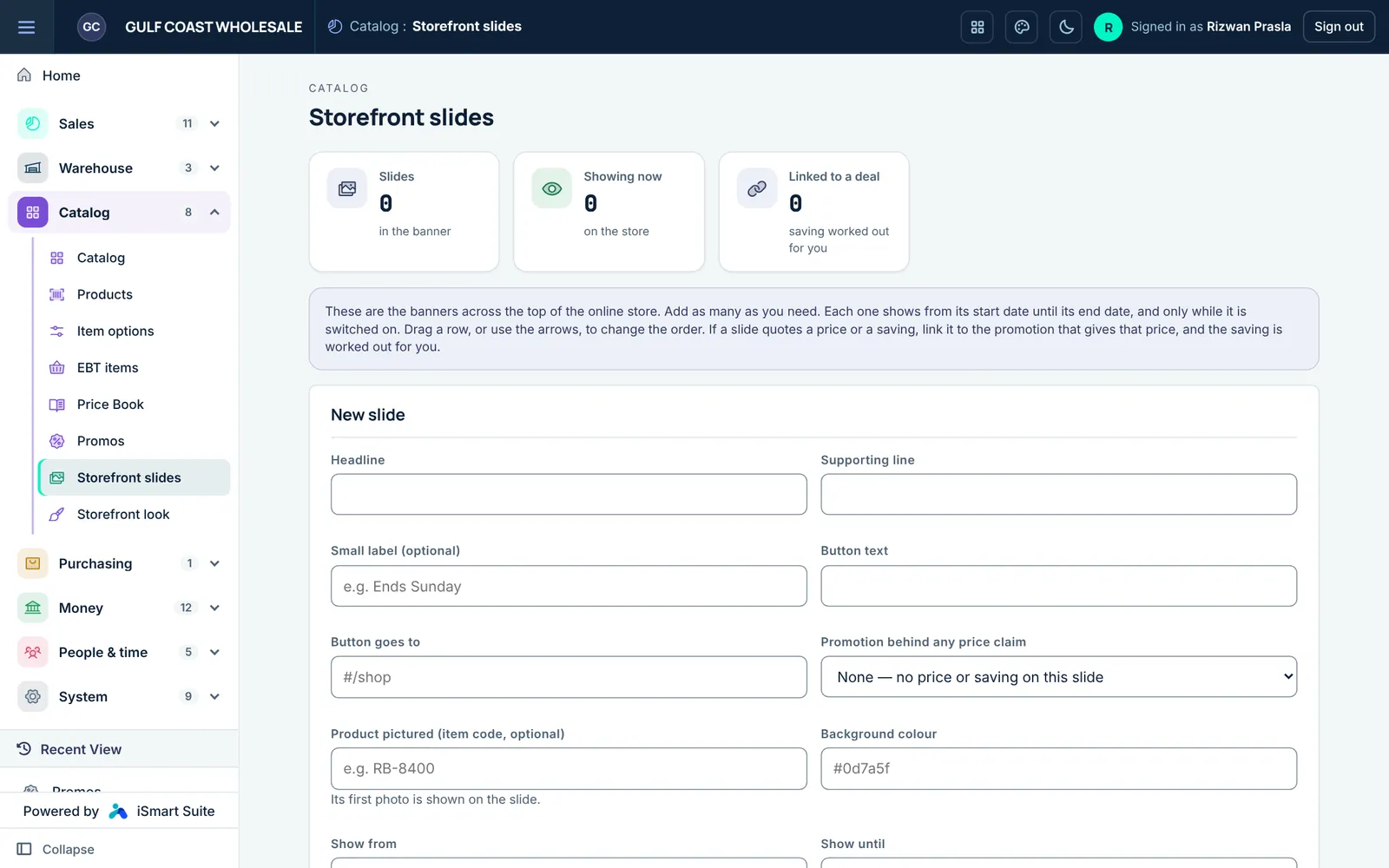
Catalog → Storefront slidesAdd a banner with a headline, a line under it and a button
Give it dates and it shows only between them.
Watch out for
- A product with no department is hidden from customers. Check Catalog → Catalog for the count of uncategorized products before you send anyone the link.
- Products without photos show a blank tile. You can add up to five photos to each.
Questions about this
Can a store order without an account?
Yes. A new store can add to its cart and enter its details at checkout. The order arrives marked as needing a look first, and the store appears under Customers → New signups for you to review.