
Import or update products from a spreadsheet
Load hundreds of products at once, see exactly what will change before it happens.
For: Owner / Admin, Inventory manager · about 15 minutes
Step by step
Where:
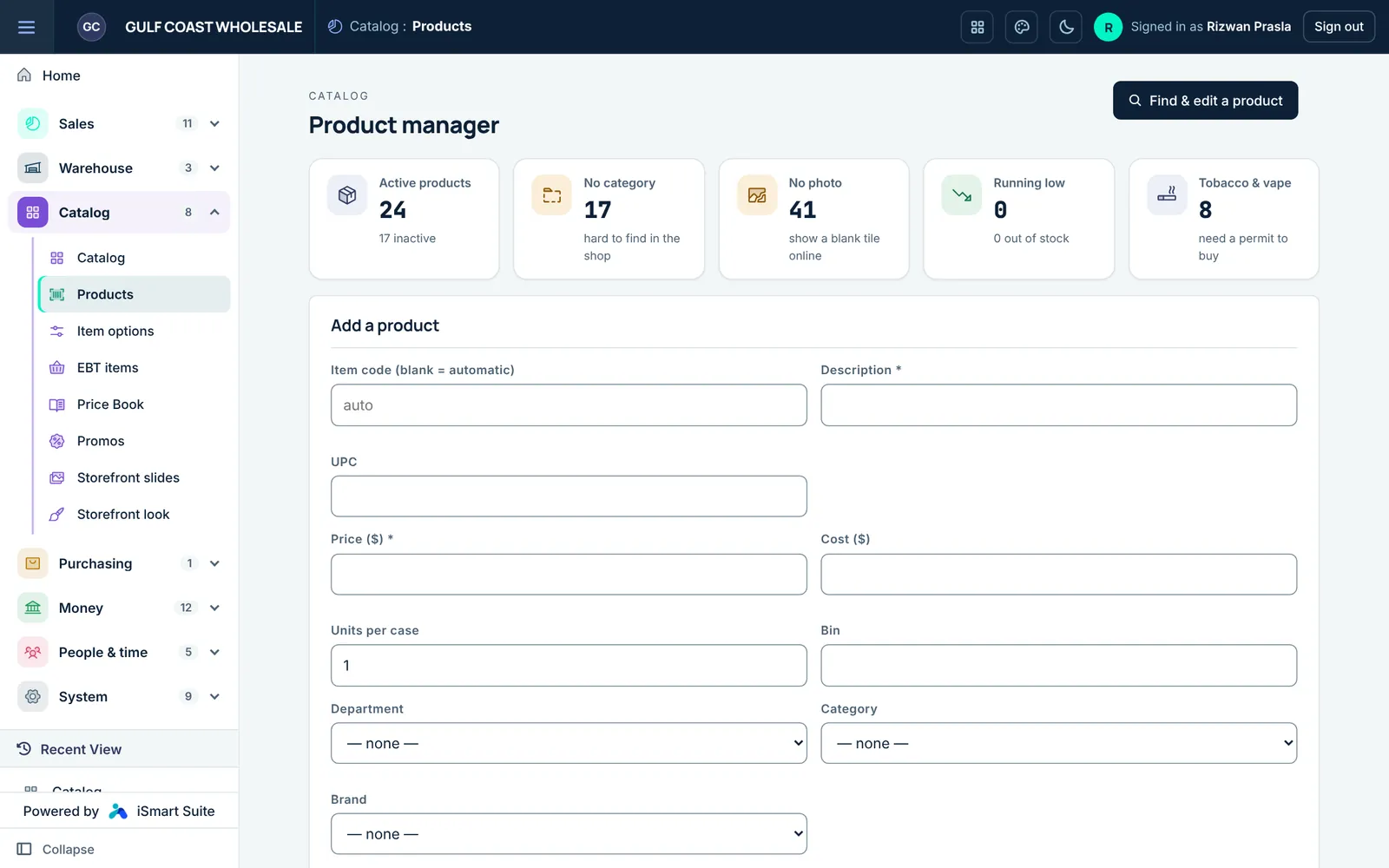
Catalog → ProductsOpen the Product manager and find the "Import / update from a spreadsheet" panel
Make sure the first row of your file is column names, and that item_code is one of them
Item code is how a row finds the product it belongs to. Without it the import has no way to tell an update from a new product.
Choose the file, or paste the rows into the box
Column names are matched loosely — sku, barcode, name, price and dozens of other spellings are understood, so you rarely have to rename anything.
Press Preview and read what it says
It reports how many products would be created, how many updated, and which departments or brands it could not find. Nothing has been saved at this point.
Fix anything it flagged, then press Import
Missing departments are worth fixing first: items imported without one never reach a kitchen screen or a kiosk, because both read the department.
Watch out for
- Prices and costs are read as whole currency — 39.99 means $39.99. Case pack is how many units are in the case, not the case price.
- Leaving a column out leaves that field alone on an existing product. Putting the column in but leaving the cell EMPTY clears it. That difference matters when updating.
- Only roles that can see costs may import them. If a cost column is ignored, check the role rather than the file.