
Close the day
Count the drawer, agree the takings, seal the day so the figures stop moving.
For: Owner / Admin, Counter / cashier, Sales manager · about 10 minutes
Closing the day fixes that day's numbers so reports stop changing underneath you. Once a day is sealed, nothing can be backdated into it.
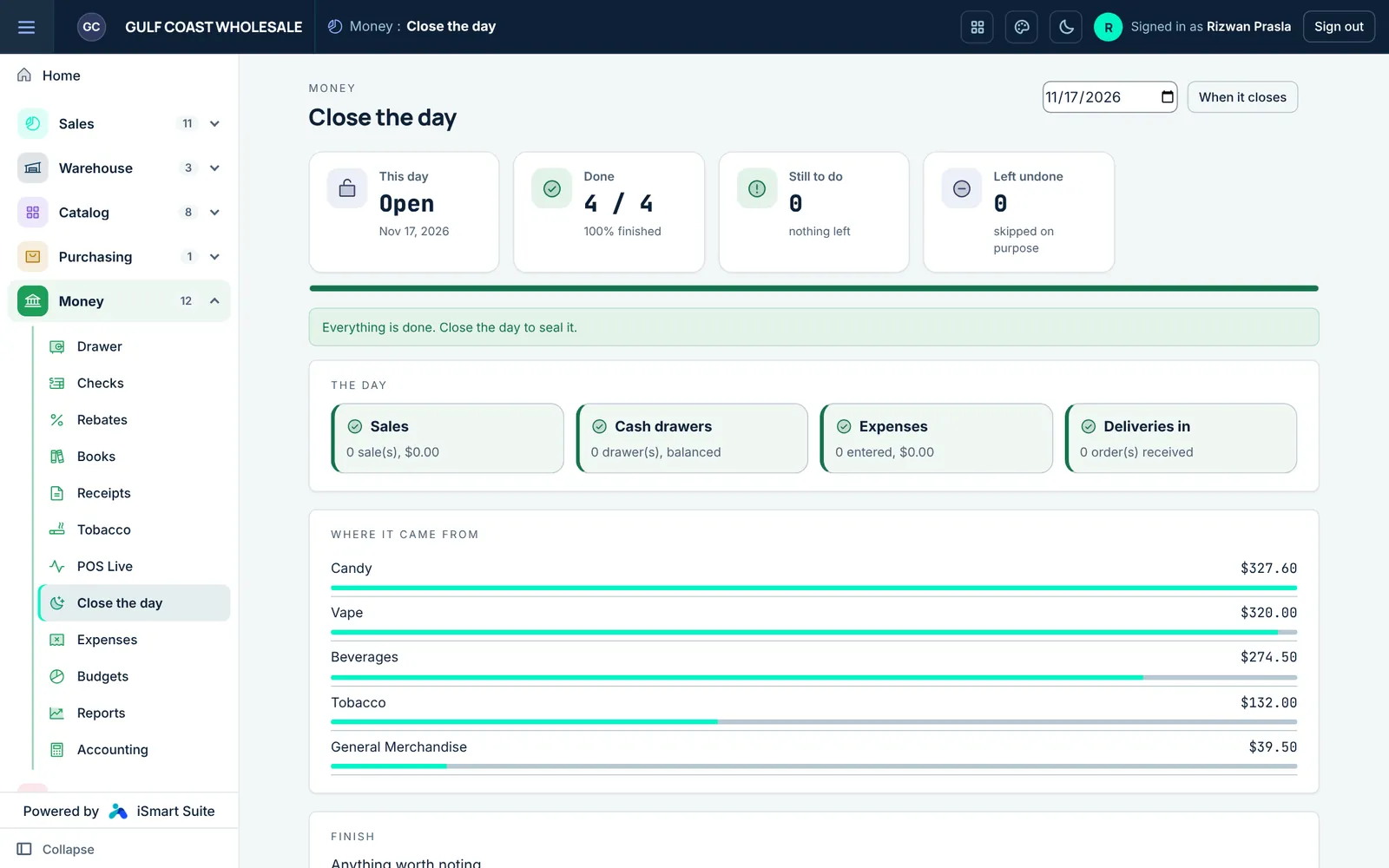
Step by step
Where:
Money → Close the dayCheck the date shown is the trading day you are closing
It defaults to your own calendar day, not the server's — which matters when you are closing up late in the evening.
Count the drawer and enter what is actually there
The difference between counted and expected is the number worth looking at. Entering the expected figure defeats the point.
Work down each section and seal the day
Watch out for
- A sealed day cannot have transactions backdated into it. If something genuinely belongs in a sealed day, it has to be unsealed deliberately — there is no quiet edit.
Questions about this
What if the drawer does not balance?
Record what you actually counted. A recorded discrepancy is information; a forced balance is a lie that hides the next one.