
Clock in, and approve the week’s hours
How staff record their hours, and how a manager approves and locks them.
For: Owner / Admin, Inventory manager, Sales manager, Sales rep, Counter / cashier, Warehouse, Driver, Customer support · about 3 minutes
Everyone clocks themselves in and out. At the end of the week a manager approves the hours and locks the week, and a locked week is what payroll is worked out from.
Step by step
Where:
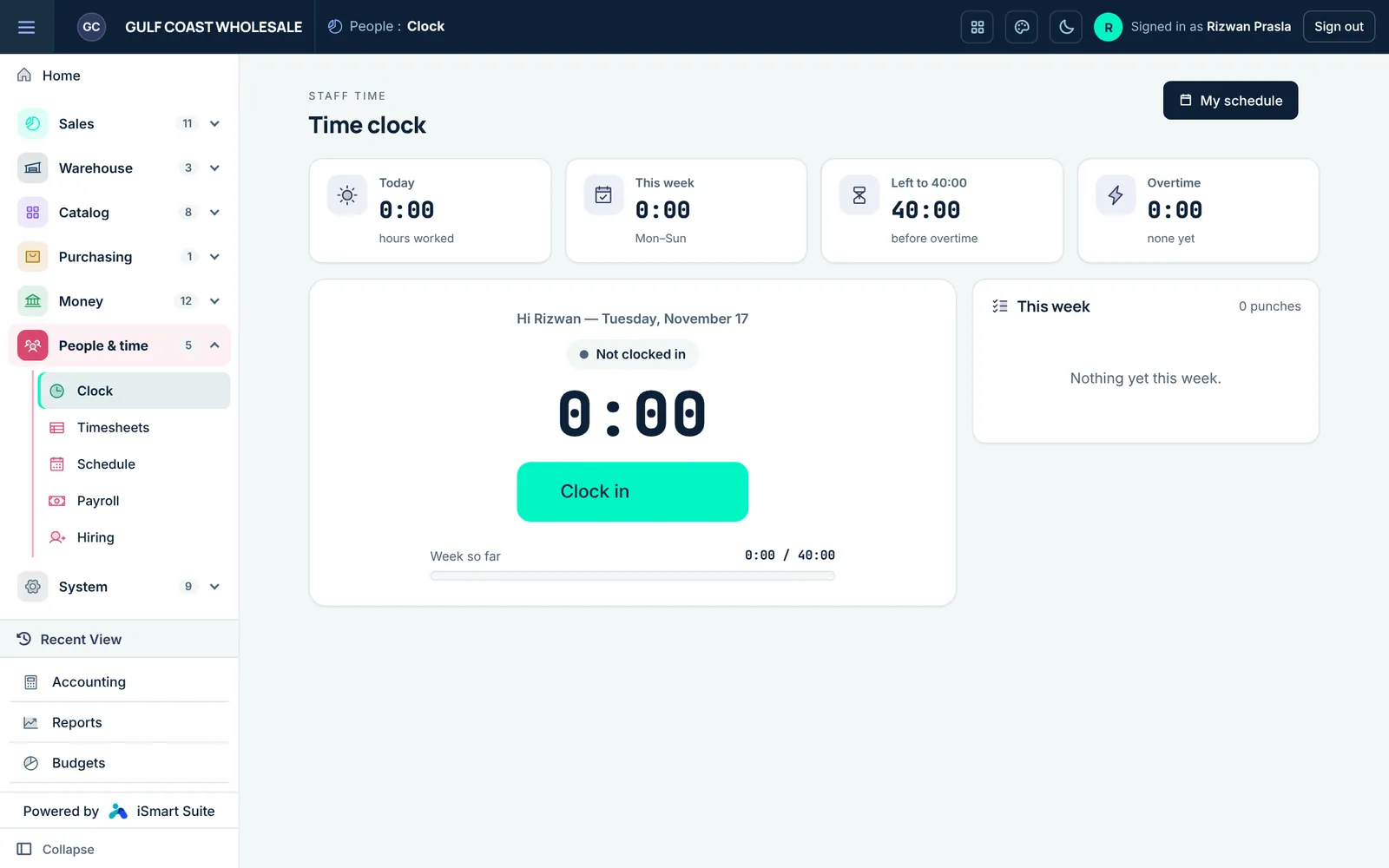
People & time → ClockPress Clock in when you start and clock out when you finish
The screen shows your hours today, this week, and how far you are from 40.
Where:
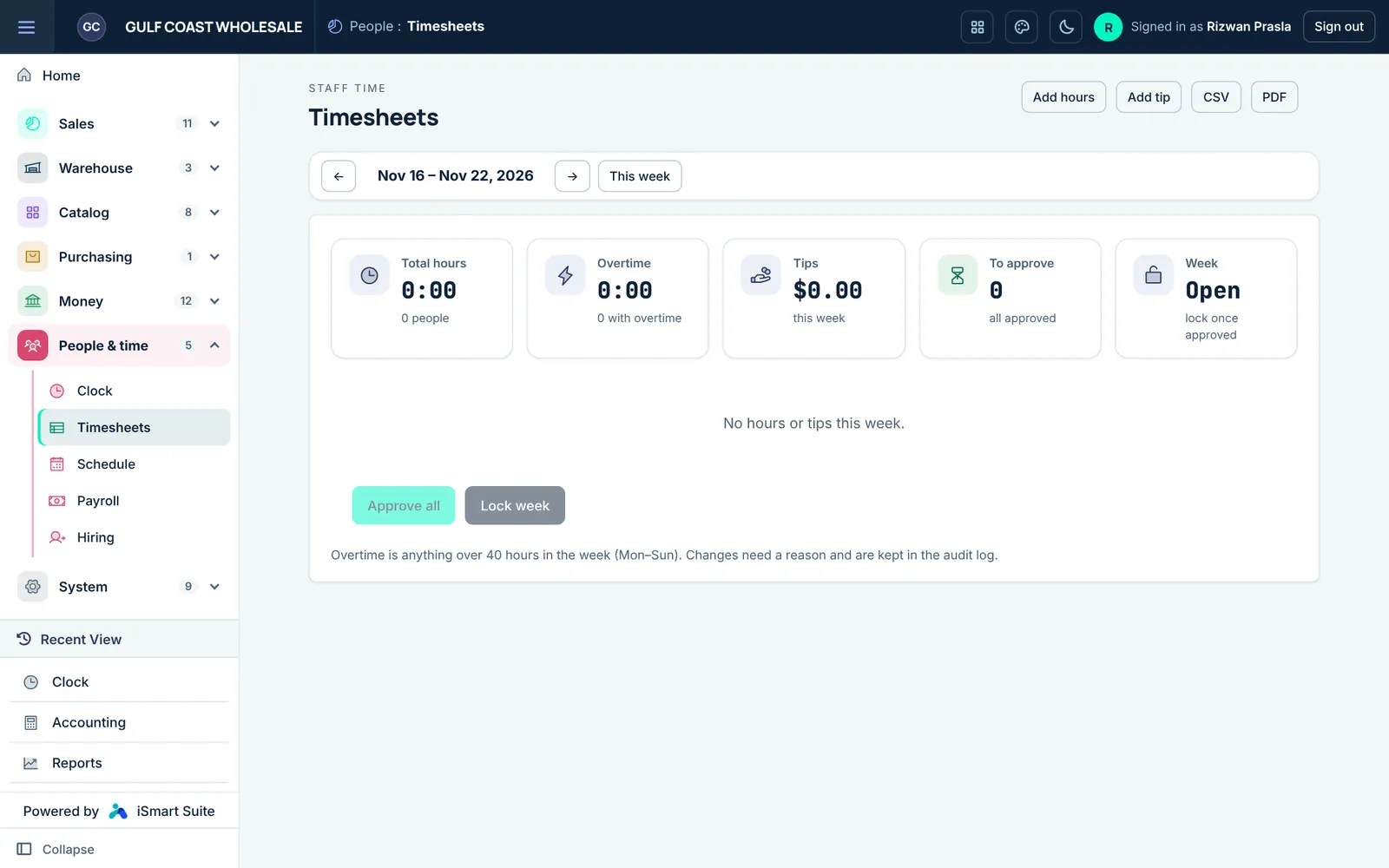
People & time → TimesheetsManagers: check the week, and add any missed hours with Add hours
A change needs a reason, and the reason is kept in the audit log.
Press Approve all, then Lock week
A locked week cannot be changed, which is why payroll trusts it.
Watch out for
- Overtime is anything over 40 hours in the week, Monday to Sunday.
- Payroll works out pay, withholding and employer taxes. It does not file anything or pay anyone; the tax screens are worksheets for you or your accountant.
Questions about this
Can staff see each other’s hours?
No. Each person sees their own hours and their own published schedule. Only people allowed to manage time see everyone’s.