
Record a payment against an invoice
Take cash, a check, a bank transfer, a card payment or Zelle against what a store owes.
For: Owner / Admin, Sales manager · about 2 minutes
Payments are recorded on the invoice they pay. A payment for less than the balance leaves the invoice marked Part paid, and the rest stays on the store’s account.
Step by step
Where:
Sales → InvoicesOpen the invoice
Use the Open or Overdue filter, or search by invoice number or customer.
Where:
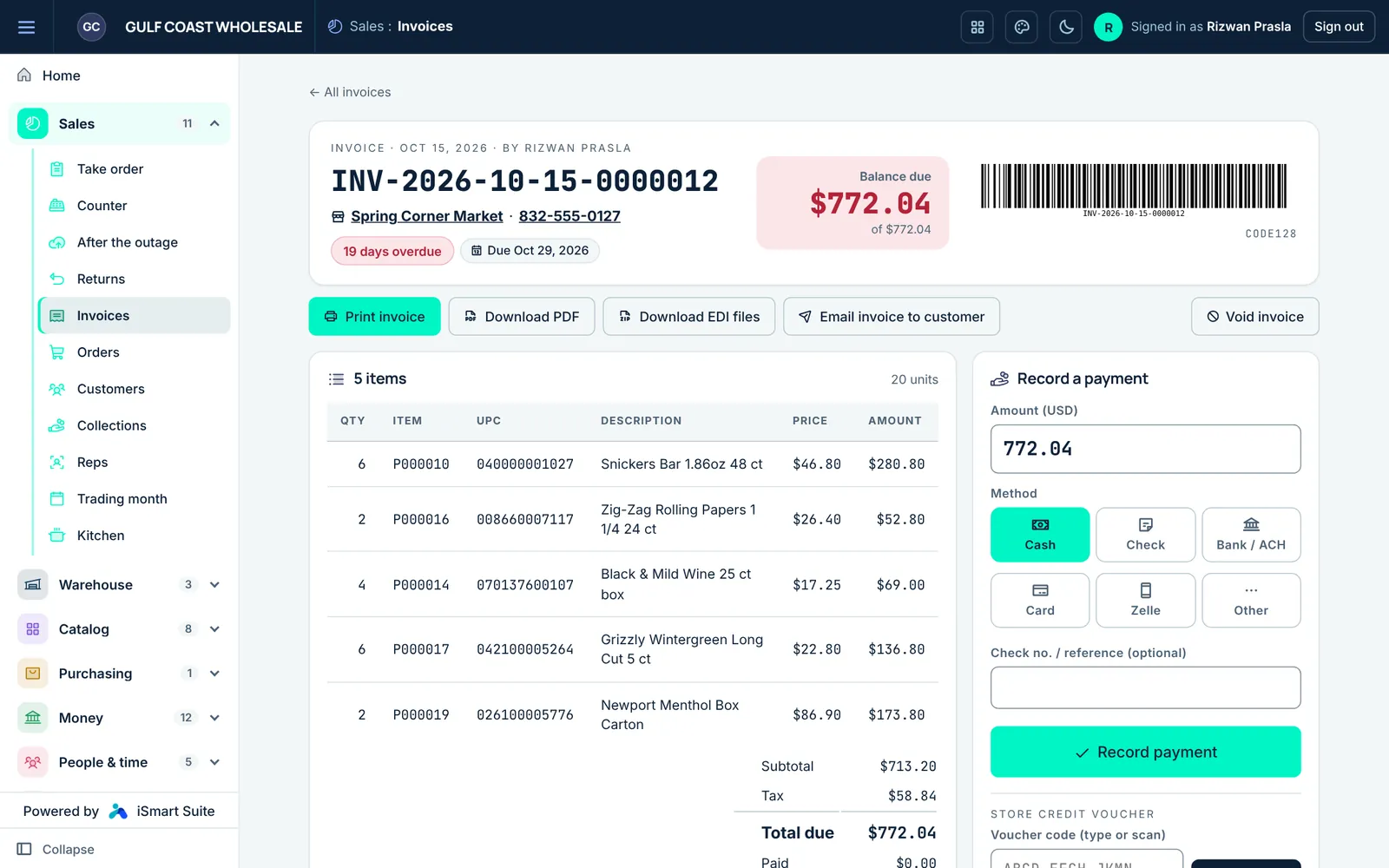
Record a paymentCheck the amount
It starts at the full balance. Change it if the store is paying part.
Choose the method: Cash, Check, Bank / ACH, Card, Zelle or Other
The method is what your day’s takings and your reports are split by.
Type the check number or reference, then press Record payment
A reference is what lets you match the payment to your bank statement later.
Watch out for
- Recording a card payment here only notes that you were paid by card. It does not charge a card. For that, the store pays online from the invoice email once you have connected online payments in Settings.
- A payment recorded in error is refunded from the invoice by someone with permission to void, not deleted, so the history stays complete.
Questions about this
Can my customers pay an invoice online?
Yes, once you connect your own Stripe account under Settings → Online payments. The money goes to your Stripe account, not through us.
Where do I see everything that is still unpaid?
Sales → Collections shows what every store owes, split by how late it is. Sales → Invoices with the Open filter shows it invoice by invoice.